By John Gruber

WorkOS: How to give an agent a task instead of a token.
Linked List: September 5, 2019
Thursday, 5 September 2019
- Interesting Report From Barclays Analyst Blayne Curtis Back in May ★
-
This report from Barclays analyst Blayne Curtis back in May is interesting. He predicted both of the things Mark Gurman reported today: the return of Touch ID via an in-screen fingerprint sensor, and a new iPhone SE based on the iPhone 8.
- Gurman Claims Touch ID Coming Back to iPhone With In-Screen Fingerprint Sensor ★
-
Mark Gurman and Debby Wu, reporting for Bloomberg*:
Apple Inc. is developing in-screen fingerprint technology for as early as its 2020 iPhones, according to people familiar with the plans. The technology is in testing both inside Apple and among the company’s overseas suppliers, though the timeline for its release may slip to the 2021 iPhone refresh, said the people, who asked not to be identified discussing private work. [...]
The upcoming fingerprint reader would be embedded in the screen, letting a user scan their fingerprint on a large portion of the display, and it would work in tandem with the existing Face ID system, the people familiar with Apple’s plans said.
If true, I would guess this would be an optional way to increase security by requiring both Face ID and Touch ID authentication.
Apple is also working on its first low-cost iPhone since the iPhone SE. That could come out as early as the first half of 2020, the people said. The device would look similar to the iPhone 8 and include a 4.7-inch screen. The iPhone 8 currently sells for $599, while Apple sold the iPhone SE for $399 when that device launched in 2016. The new low-cost phone is expected to have Touch ID built into the home button, not the screen.
The SE debuted about 6 months after the iPhone 6S, with the same A9 chipset. If Apple follows the same playbook, this new iPhone would have the A13 chip we expect to see in next week’s new iPhones — the iPhone 8 has an A11 that will soon be two years old. Makes a lot of sense — none of the X-class phones are going to drop to $400 in 2020, but it would be good for Apple and for users if there were a $400 iPhone with A13 specs. The only downside of this report is for people holding onto hope that Apple will make a new SE-sized phone with a 4-inch display. I would expect this rumored phone to look as much like an iPhone 8 as the SE looks like an iPhone 5S.
* Bloomberg, of course, is the publication that published “The Big Hack” last October — a sensational story alleging that data centers of Apple, Amazon, and dozens of other companies were compromised by China’s intelligence services. The story presented no confirmable evidence at all, was vehemently denied by all companies involved, has not been confirmed by a single other publication (despite much effort to do so), and has been largely discredited by one of Bloomberg’s own sources. By all appearances “The Big Hack” was complete bullshit. Yet Bloomberg has issued no correction or retraction, and seemingly hopes we’ll all just forget about it. I say we do not just forget about it. Bloomberg’s institutional credibility is severely damaged, and everything they publish should be treated with skepticism until they retract the story or provide evidence that it was true.
- Camera Sales Are Falling Sharply ★
-
Om Malik:
Camera sales are continuing to falling off a cliff. The latest data from the Camera & Imaging Products Association (CIPA) shows them in a swoon befitting a Bollywood roadside Romeo. All four big camera brands — Sony, Fuji, Canon, and Nikon — are reposting rapid declines. And it is not just the point and shoot cameras whose sales are collapsing. We also see sales of higher-end DSLR cameras stall. And — wait for it — even mirrorless cameras, which were supposed to be a panacea for all that ails the camera business, are heading south.
Hard to overstate just how good camera phones are getting, and just how convenient it is for sharing to have them right there on your phone, immediately.
- Twitter Is Finally Working on Search for DMs ★
-
Jon Fingas, reporting for Engadget:
Twitter isn’t just launching a deluge of tests — it just announced that a few sought-after features in the pipeline. Most notably, it’s developing a long-overdue search for direct messages. Although there aren’t many specifics at this point, it’s reasonable to say this will spare you from digging through a conversation to find a crucial message from days ago. The social network added that it’s “re-energizing” its work on DMs, so this is really just the highlight of a larger strategy.
Weeks-old news but I didn’t see it until just now. The lack of any search at all for Twitter DMs makes iMessage search seem useful.
My experiment with leaving my DMs open to everyone on Twitter has been successful, by the way — very little spam, very high signal-to-noise from folks whom I don’t follow (who, if my DMs were not open, wouldn’t be able to DM me).
- Using the Command Key to Reveal Items in the Finder From Spotlight and the Dock ★
-
Glenn Fleishman, writing at Macworld, “How to Open Items in the Enclosing Folder Directly From a Spotlight Search in macOS”:
One might think after many years of Spotlight search being in macOS that there would be no new tricks. But a colleague on Twitter asked a reasonable question and many people chimed in with the same query: When viewing a list of results in a Spotlight search in the Finder, how do you jump to see the item in the context of its enclosing folder rather than just opening the file?
The answer is simple: hold down Command and press the Return key or press Command-R. You can also hold down Command and double-click the item in the results list.
Using the Command key as a modifier to reveal items in the Finder while clicking has a long and consistent history on the Mac. You can also Command-click items in the Dock to reveal them rather than open them. (If you Command-Option-click a folder in the Dock it will open that folder, rather than reveal that folder in its parent folder.) Also useful: you can click on a folder in the Dock (Downloads is one I use this with frequently) and then Command-click on one of the items in the menu listing the folder’s contents. And in document-based apps, you can Command-click on the document’s proxy icon in the window’s title bar and you’ll get a pop-up menu showing the folder hierarchy of the document’s location in the file system. Select any of those folders and you’ll go to that folder in the Finder.
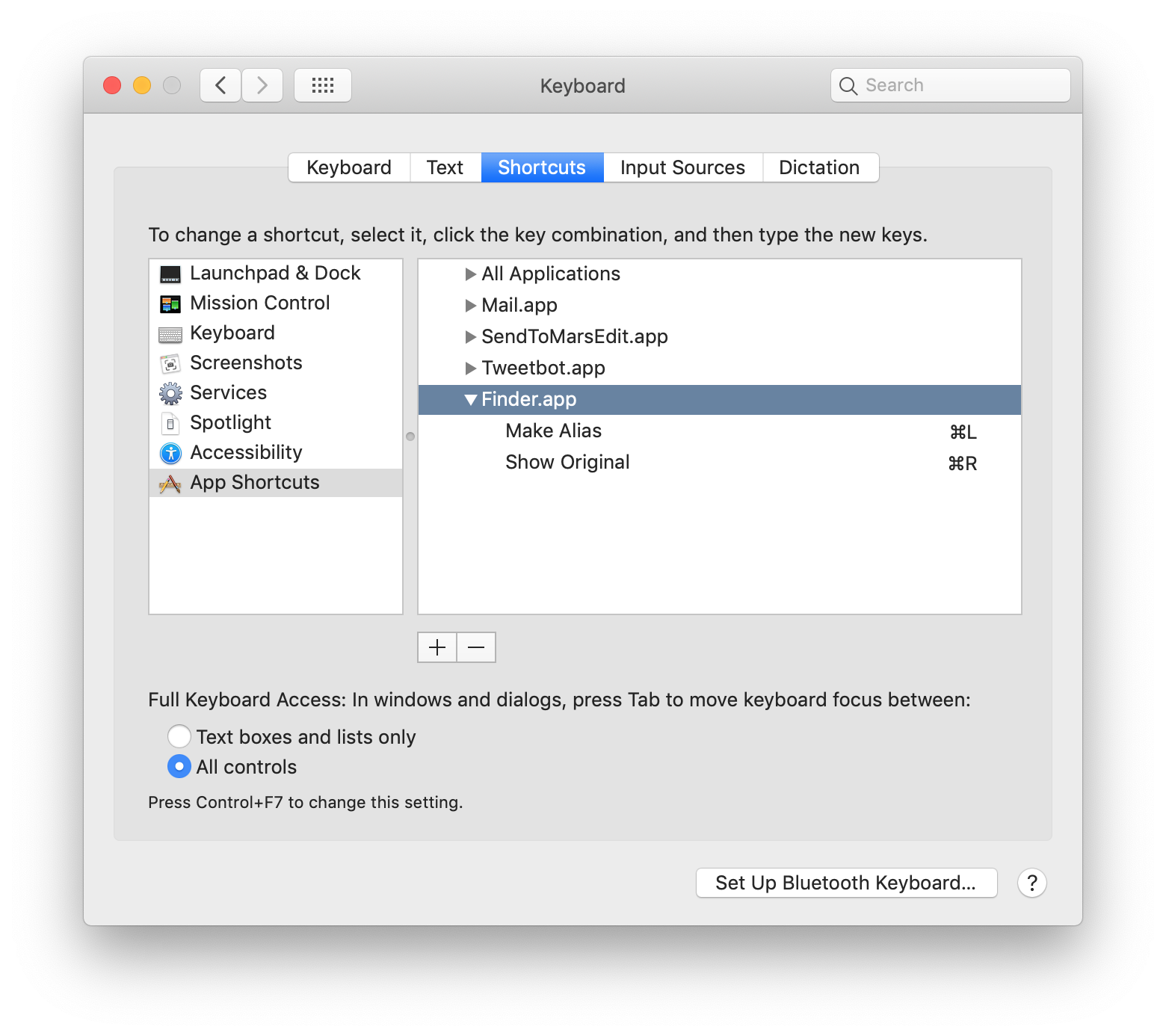
Sidenote: From System 7 in 1991 through MacOS 10.13 High Sierra, ⌘R was also the shortcut for “Show Original” in the Finder. Select an alias (or symlink), hit ⌘R, and you’d see what the alias/symlink was pointing to. In MacOS 10.14 Mojave last year, some idiot at Apple changed the shortcut for “Make Alias” from ⌘L to ⌃⌘A and the shortcut for “Show Original” to ⌃⌥⌘A. Someone told me why this idiot made this change, but damned if I can remember or figure it out, because it doesn’t seem like the Finder in Mojave or Catalina uses ⌘R or ⌘L for anything else. Someone just decided to change 30-year-old shortcuts with no regard for muscle memory or consistency with other places where ⌘R reveals something in the Finder. (Apple still has support documents with the old shortcuts.)
Update to Sidenote: Thanks to a few readers for reminding me — starting with 10.14 Mojave, ⌘R and ⌘L are now used for rotating images right and left. I couldn’t find the shortcuts because (a) they only work when an image file is selected, and (b) they don’t have commands in the Finder’s menu bar, another bit of UI lunacy.
And to top this all off — truly, this is genuinely hard to believe — these ⌘R and ⌘L shortcuts not only break 27-year-old Finder shortcuts, but they aren’t even consistent with Photos, which uses ⌘R for “Rotate Counterclockwise” and ⌥⌘R for “Rotate Clockwise”. So in Photos the R maps to Rotate not Right, and the direction for an image rotated using ⌘R is left/counterclockwise. I don’t use the word lightly, but whoever pushed this change through for the Finder is an idiot.
One More Update: There is some consistency to using ⌘L and ⌘R as shortcuts for “Rotate Left” and “Rotate Right” — those are the same command names and shortcuts that Preview uses. But there’s no reason Preview doesn’t use the same command names and shortcuts as Photos, and Photos’s use of “Clockwise” and “Counterclockwise” is, in my opinion, more clear than “Right” and “Left”. And, lastly, if you miss the longstanding use of ⌘L and ⌘R in the Finder for “Make Alias” and “Show Original”, you can easily restore them manually in the Keyboards pane in System Preferences — one of the great features of MacOS. You can also make custom shortcuts for the Finder’s “Rotate Left” and “Rotate Right” commands, even though they’re both hidden menu items.
OK, OK, I Swear This One Really Is the Last Update: Another good Command-click trick — which dates back at least to System 7 in 1991, and possibly earlier — is that you can Command-click on any window in the background and drag it around without bringing the window forward. Update to the Last Update but I’m Not Breaking My Promise That There Would Be No More Updates Because I’m Not Putting This One in a New Paragraph: My old friend Andrew Ross tweets that Command-clicking to move and interact with background windows goes back at least to System 4 and perhaps to System 1.
- How a Haverford Student Came Close to Getting Trump’s Tax Returns ★
-
Sam Wood, reporting for The Philadelphia Inquirer:
In the days before the November 2016 election, two Haverford College students came within a hair’s breadth of prising Donald Trump’s tax returns from a government database.
Nearly three years later, the man who federal investigators believe masterminded the plan is pleading guilty. Andrew Harris, 24, is scheduled to admit on Thursday that he used a student financial aid site in a failed attempt to access Trump’s most-guarded financial documents.
There are a couple of gems in this story, including Harris’s own attorney expressing regret for comparing his client and friend to Beavis and Butt-Head.