
By John Gruber

We’re just out
here a-havin’ fun
In that warm
California sunnn…
- Menu Bar, Title Bar, What’s the Difference?
-
From Apple’s iPhone Mirroring documentation, boldface emphasis added:
Click to tap: Click your mouse or trackpad to tap. You can also swipe and scroll in the iPhone Mirroring app, and use your keyboard to type.
Open the App Switcher: Move your pointer to the top of the iPhone Mirroring screen until the menu bar appears, then click
 to open the App Switcher.
Go to the Home Screen: If you’re in an app and want to return to the Home Screen, move your pointer to the top of the iPhone Mirroring screen until the menu bar appears, then click
 .
.
It certainly sounds like these instructions are for users who, sadly, have the menu bar hidden by default. But there are no
or buttons in the menu bar. These buttons are in the iPhone Mirroring window title bar, which is, for all users, hidden by default: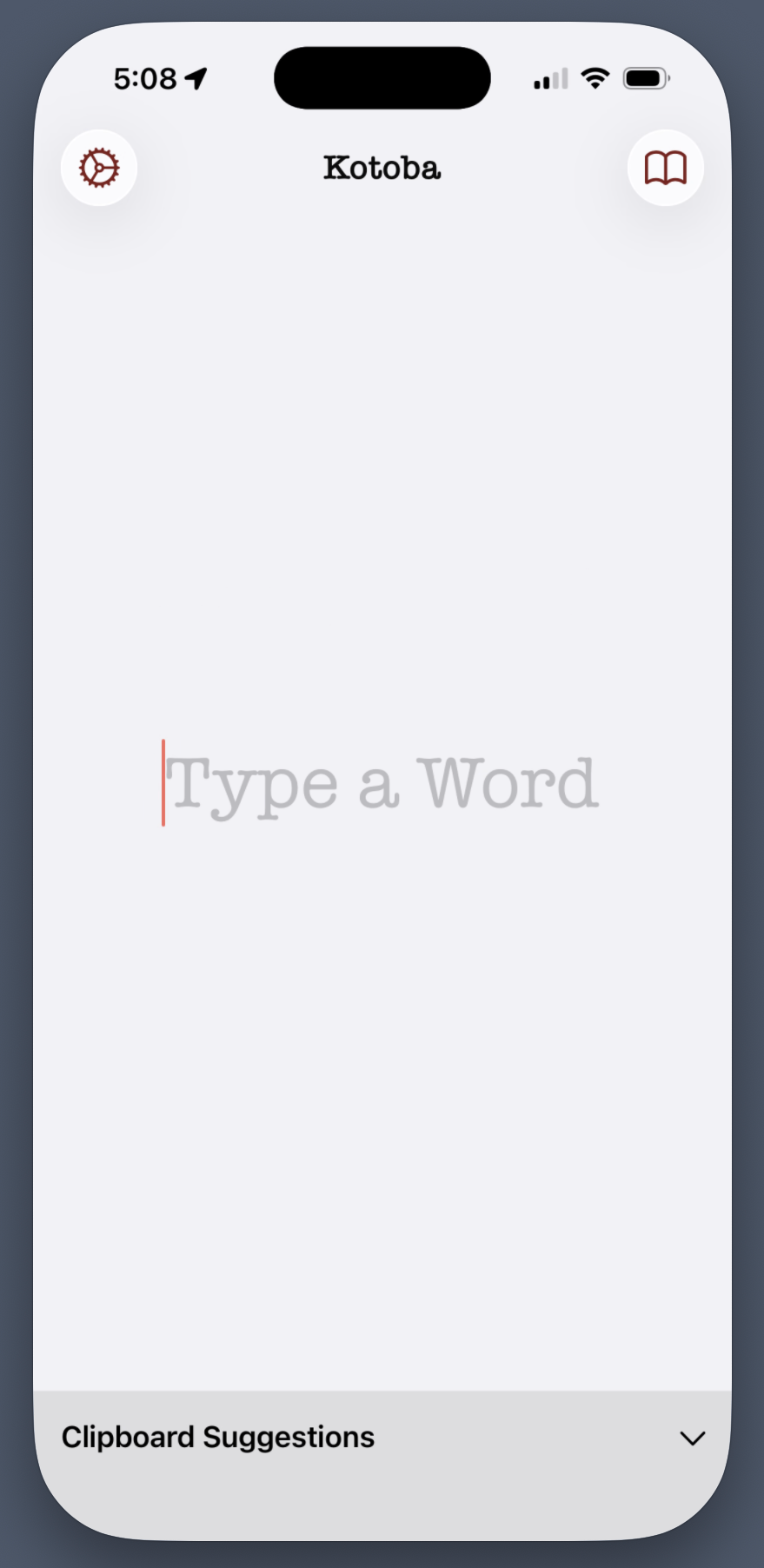
but which presents a proper window title bar when the mouse pointer is hovering in the area where the title bar will appear:
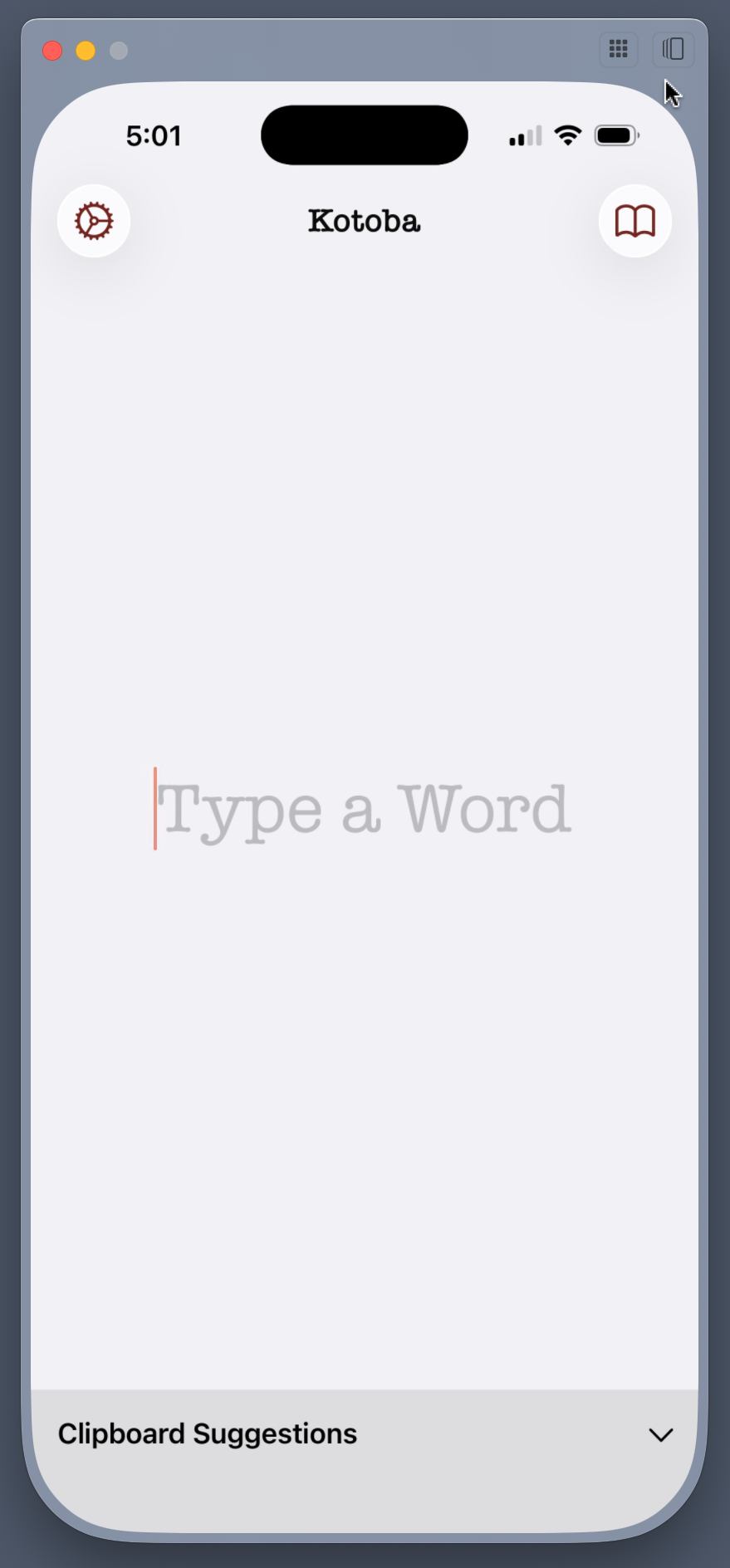
Since I’m feeling generous, I’ll chalk this up to an absentminded mistake on the part of Apple’s documentation team. If I were feeling cynical, I would instead suspect that Apple has so lost the plot on the Mac that they now employ documentation writers and editors who do not understand the difference between the menu bar and window title bars. (It doesn’t help that the iPhone Mirroring window title bar, like so many windows in Apple’s recent Mac apps, doesn’t have a title.)
For what it’s worth, this documentation is the same for both MacOS 15 Sequoia and 26 Tahoe.
★ Monday, 19 January 2026