
By John Gruber
WorkOS: How SSO works and the fastest way to add it.
The Software Update UI for Upgrading to MacOS 26 Tahoe Is Needlessly Confusing
Monday, 10 November 2025
I upgrade my iPhones and iPads to new iOS releases, including developer betas, pretty much willy-nilly. I’m more conservative about the Macs I use for work. For example, I rely on audio software from Rogue Amoeba for recording both The Talk Show and Dithering, and there were bugs in MacOS 26.0.0 and 26.0.1 that could have resulted in lost audio. Those bugs have been fixed as of MacOS 26.1, so, over the weekend, I upgraded the Mac I use for podcasting. But my main MacBook Pro is still running MacOS 15 Sequoia — not because of any compatibility issues, but simply because I think the Tahoe user interface is goofy looking. I’ll probably bite the bullet and upgrade when 26.2 comes out next month, but for now, I’m luxuriating with a MacOS UI with well-crafted app icons and windows that don’t have Fisher-Price-style corner radiuses.
In the meantime, though, I’m keeping MacOS 15 Sequoia up to date. When the MacOS 15.7.2 update arrived last week, I noted in a post on Mastodon that it sure looked like clicking the “Update Now” button next to the MacOS 15.7.2 update in System Settings → General → Software Update would actually install the upgrade to MacOS 26.1 Tahoe. There are little “ⓘ” buttons next to the “Upgrade” buttons for Tahoe 26.1 and “Update” buttons for Sequoia 15.7.2. The “Info” panel that’s presented after clicking either “ⓘ” button shows that Tahoe 26.1 is the version that is checked.
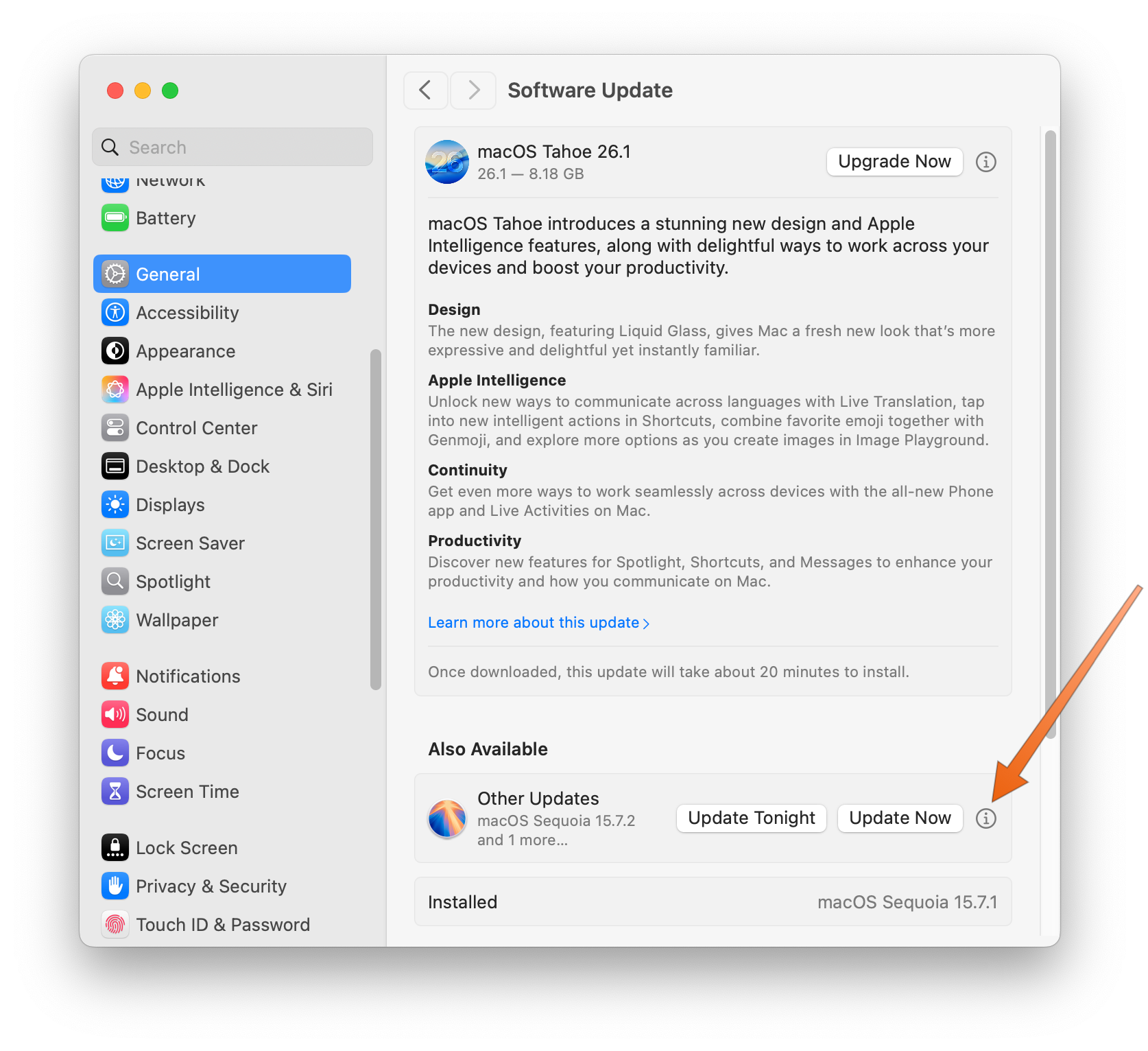
Click that “ⓘ” button in the “Other Updates” section and you get:
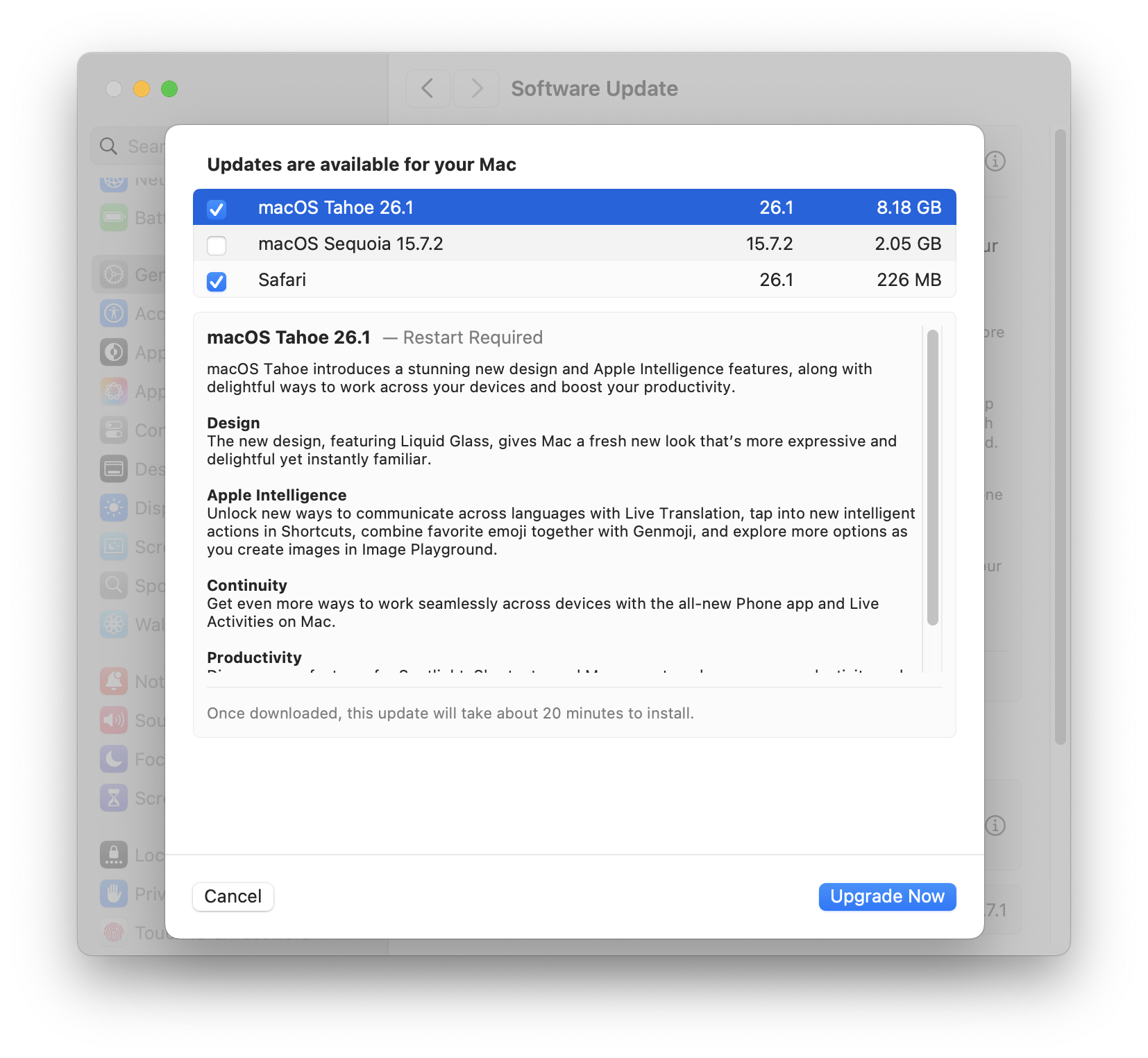
Leon Cowle was brave enough to try this out, and, it turns out, just clicking the “Update Now” button next to Sequoia will, thankfully, do the right thing: install the Sequoia 15.7.2 update, not Tahoe. (I followed Cowle’s brave lead and tried it myself, and can confirm that “Update Now” installed the Sequoia 15.7.2 update.) Why the Info panel presented by clicking the “ⓘ” button next to Sequoia in the “Other Updates” section defaults to installing the upgrade to 26.1 Tahoe, I don’t know. But it sure makes it seem like we need to be more careful than we actually do if we want to stick with MacOS 15 Sequoia for now.
The “ⓘ” buttons do not, as I would expect, open a sheet with detailed information about the software updates per each section of the Software Update settings panel. Instead, even though there are separate “ⓘ” buttons in each section of the settings panel, they each open the same sheet that allows exact control over which available software updates to install. That includes the exact same default selections in this sheet. But the items selected (checked) in this sheet have no bearing on what gets installed by the “Upgrade Now” and “Update Now” / ”Update Tonight” buttons in the main Software Update settings panel. Those checked items in the “ⓘ” sheet only control what gets installed from within that sheet itself. So if you click the “ⓘ” in the “Other Updates” section, because you want to update to the latest version of MacOS 15 Sequoia and see what other updates are being installed (like Safari, in my example screenshot above), and you don’t pay attention to the checked version of MacOS in that sheet, you can inadvertently upgrade to Tahoe.
I don’t know what the i in the “ⓘ” button is supposed to stand for, but it isn’t intuitive.