
By John Gruber

All your customer
data in that nice
California sunnn.
Early access now!
The iPhone Duo
Wednesday, 21 October 2026
The very nature of the iPhone Duo raises numerous obvious questions about what it’s like to use. Does it not feel thick and heavy, awkward both to pocket and unpocket? Doesn’t the outer (cover) screen feel small and cramped, with an unfamiliar squat-rather-than-tall layout for UI controls in every app you use? Isn’t it weird that when you open it up to use the inner screen, that all the hardware buttons on the edges of the device are in the “wrong” places for a tablet? For anyone who’s gotten used to Face ID over the last decade, is it not frustrating to go back to Touch ID? And what about third-party apps that haven’t been updated to support the Duo’s novel displays — do they not suck to use?
Clearly, the point of a Duo review is to answer these questions, which really boil down to one question: How did Apple solve these problems?
The answer is: They didn’t.
All of these problems are real, and each of them detracts from the experience of using the Duo. Some of them have been mitigated through thoughtful design and clever engineering. Some of them might be solved in future iterations of the device. Some of them, though, I believe are endemic to the very idea of a foldable, and cannot be solved.
The Duo name is perfect. It truly is like having two devices in one. The outer device is, by far, the worst iPhone Apple has ever made. It’s a miserable fat little thing. The inner device is a splendid, joyful, beautiful tablet, with a UI that out-iPads the iPad. For me, by far, it’s my favorite tablet experience ever. I prefer it to any iPad or Kindle-like reader I’ve ever used.
So I’ll cut to the chase. The decision of whether you might want to buy a Duo is not easy, because only one of its two selves is good. You might be delighted, despite its clear compromises, if what you value most is a pocketable small tablet and are ambivalent about your iPhone. You might be endlessly frustrated if you love your iPhone, and use it extensively, often for quick interactions throughout the day, every day.
More Than Meets the Eye
I was a kid when Transformers hit the toy market. I had a few — every boy my age did — but I was more of a GI Joe kid. It always bothered me that, as toys, Transformers were clearly compromised in both states. Folded up, they weren’t good cars / trucks / fighter jets. They had obvious seams and folds. In the cartoons — and the subsequent live action films decades later — the Transformers’ disguised states are seamless. In real life with the actual toys, the disguised states were about as convincing as a pair of Groucho glasses. A regular toy car looked like a real car, and stayed together no matter how hard you played with it. A Transformer car never quite looked like a real car and would come apart when played with. Unfolded, they looked like robots, yes, but they had obvious compromises. And it was kind of a pain folding them back into vehicles. My recollection is that we played with them a lot more as unfolded robots than as folded vehicles.
And that’s what they were. They weren’t vehicles that pretended to be robots. They were robots in disguise. The Duo isn’t really a phone. It’s a tablet in disguise. And in the same way that a true toy car was a better toy car than a folded-up Transformer-as-car could ever be, the Duo-as-phone is just not as good a phone as any regular iPhone. Honestly it’s not even close.
Consider if you could snap the Duo in half, leaving the smaller outer display as a standalone iPhone. Would anyone want an iPhone this shape and size? I think the answer is that zero people would want this. The iPhone Mini, back in 2020 and 2021 with the iPhone 12/13 generations, proved not to be popular enough for Apple to keep around. The iPhone Minis were a way better shape than the outer Duo. There’s a reason why the iPhone Air is not shaped like half a Duo — because the Duo shape stinks as an iPhone. And that’s only considering the hypothetical of a thin lightweight Duo snapped in half. In real life, with the actual Duo, when you use it folded up the device is twice as thick and twice as heavy. These Transformer watches were a fun way to smuggle a toy robot into school, but they were crummy watches. The iPhone Duo is a fun way to fit an entire iPad Mini–sized tablet into your pocket, but it’s a cumbersome phone.
It does not go into or out of my jeans pocket smoothly. Folded up it never stops feeling heavy. It is heavy, compared to other iPhones:
| iPhone | Weight |
|---|---|
| Duo | 254g |
| 18 Pro Max | 249g |
| 18 Pro | 211g |
| 17 | 177g |
| Air | 165g |
It’s technically only negligibly heavier than an 18 Pro Max, but because it has so much less surface area, it feels far more dense. If it did not unfold, no one would buy this.
But, of course, it does unfold. That’s the entire point. Unfolded, it not only no longer feels heavy, it feels featherweight light. It’s uncanny. An open iPhone Duo has a 7.6-inch display and the physical dimensions are 4.6 × 6.5 inches. An A17 Pro iPad Mini (the current model, but supposedly not for long) has an 8.3-inch display, measures 5.3 × 7.7 inches, and weighs 297g (that’s the cellular model’s weight, which is only fair). The iPad Mini has a slightly bigger screen but it’s heavier. In hand, I prefer the unfolded Duo over the iPad Mini as a tablet, in every single regard other than hardware button placement. (More on that below.)
You simply cannot have your cake and eat it too. The Duo allows you to take what is, in several ways, the best tablet Apple has ever made — and thus, the best tablet any company has ever made — fold it in half, and put it in your pocket to carry everywhere. While folded in half, you can use it as an entirely functional iPhone, but it’s by far the worst iPhone experience ever — frustrating, ungainly, and uncomfortable.
Using the Duo Closed, With the Outer Display
Ever since it was unveiled there’s been idle speculation that, while folded, the Duo’s design is biased against left-handed users. First, because the Touch ID side button is on the right. Second, because the Duo variant of iOS moves things like application toolbars and the home screen Dock to the right.
I am right-handed, but I’m a little bit on the ambidextrous spectrum. For example, I switched to using my mouse with my left hand around 1995, when I developed RSI in my right wrist, and I’ve used my mouse left-handed ever since. (But I use a MacBook trackpad with my right thumb.) I can shoot a basketball from close range with my left hand. So going into my Duo review, I thought I’d try to use my Duo as a pretend lefty. Turns out I didn’t have to pretend. I never realized this, but I naturally use my iPhone left-handed quite a bit throughout the day. For example, while brushing my teeth. I keep my iPhone in my right front pants pocket, but I often pick it up off my desk or kitchen counter and use it left-handed.
The Duo is not comfortable left-handed. The problem isn’t the Touch ID side button — I fixed that by registering my left index and middle fingers with the Touch ID sensor. The problem isn’t right-side bias for toolbars and the Dock in iOS Duo.1 That’s not great for left-handed use, but the truth is there’s a reachability problem no matter which single hand you try holding the Duo in. It’s better to hold it in your right hand than left, reachability-wise, but fundamentally it’s so wide that it’s a two-handed device even when being used folded.
No, the problem with holding the Duo in your left hand alone is that the bottom left corner of its D-shaped frame digs into your palm. When you hold it in your right hand, it’s a nice round corner in the meat of your thumb’s base. In your left, it’s a crisp sharp corner, and it doesn’t feel good.
When using the small outer display, everything on screen feels cramped. I don’t even like the home screen. Moving the Dock to the right side breaks 19 years of spatial memory for me.2 I keep reaching for Messages, Notes, and Safari down at the bottom of my screen, when now they’re over on the right. And they look weird too, because they’re smaller icons than the others on the home screen. Ostensibly the Dock is for your four most-used apps, but now they’re the smallest icons on your home screen? What sense does that make?
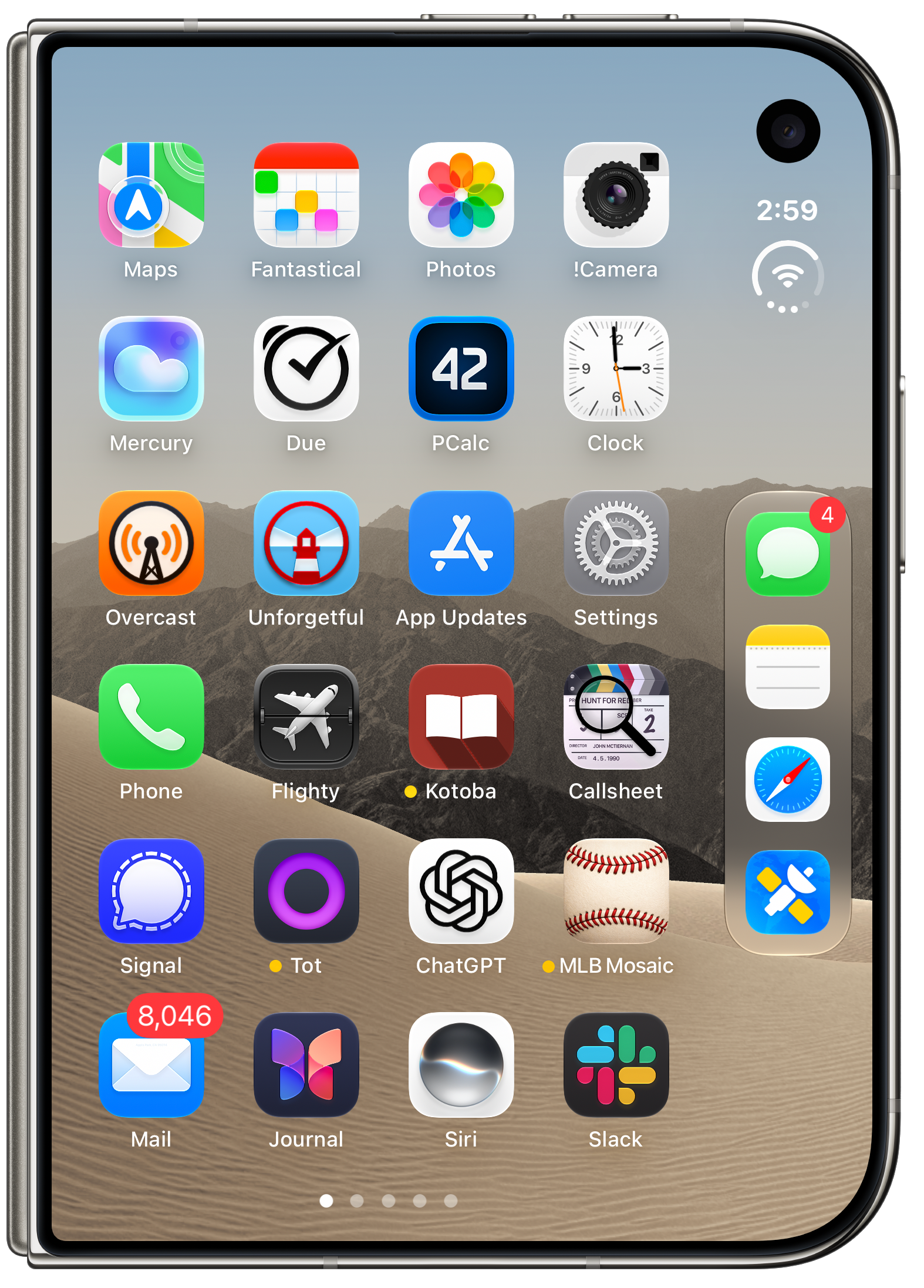
It’s such a little thing (no pun intended, I swear), but it exemplifies how many compromises Apple had to make for this small squat display.
Next, consider this screenshot from NetNewsWire:
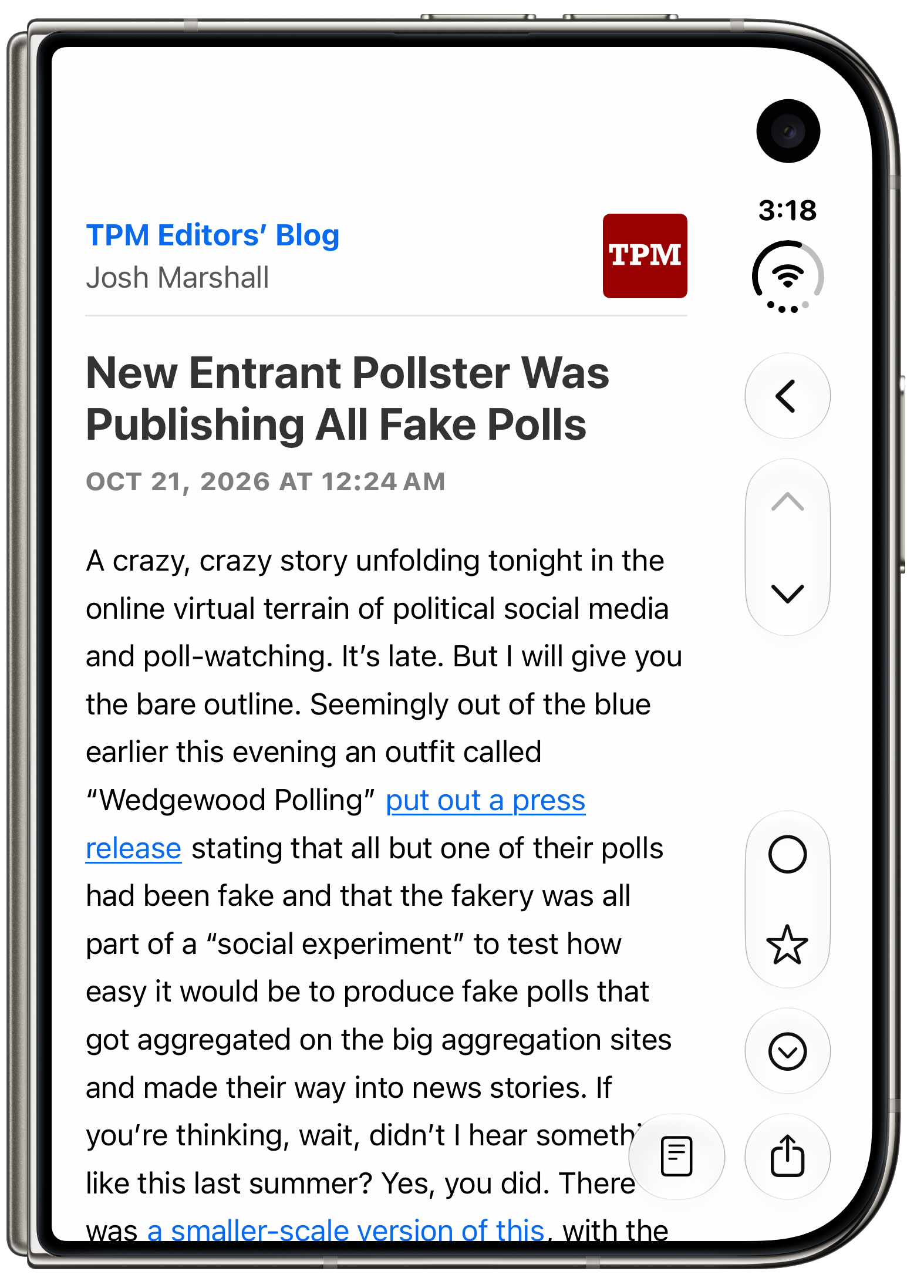
What gets me here is the chevron “❮” back button being on the right. The iPhone’s back buttons have always been at the top left of the screen because iOS has always used a left-to-right column-view inspired spatial hierarchy. Craig Federighi just explained this spatial metaphor beautifully in a short YouTube interview a month ago. This metaphor is foundational to the iPhone experience. The back button is on the left because you go back to the left. Putting a button that takes you to the left on the right side of the screen just feels wrong. I think if I used an iPhone Duo every day for the next year (please no) I would still think this felt unnatural. It’s like having a turn signal stalk in your car that you move in the opposite direction that you turn the wheel. Now, it’s true that you can swipe from the left side of the screen to go back. You don’t have to use the “❮” button. But that button is there, in every single iPhone app that presents content in a hierarchy. And it’s always on the wrong side of the screen (unless you’re using an app on the left side of split screen multitasking — see below).
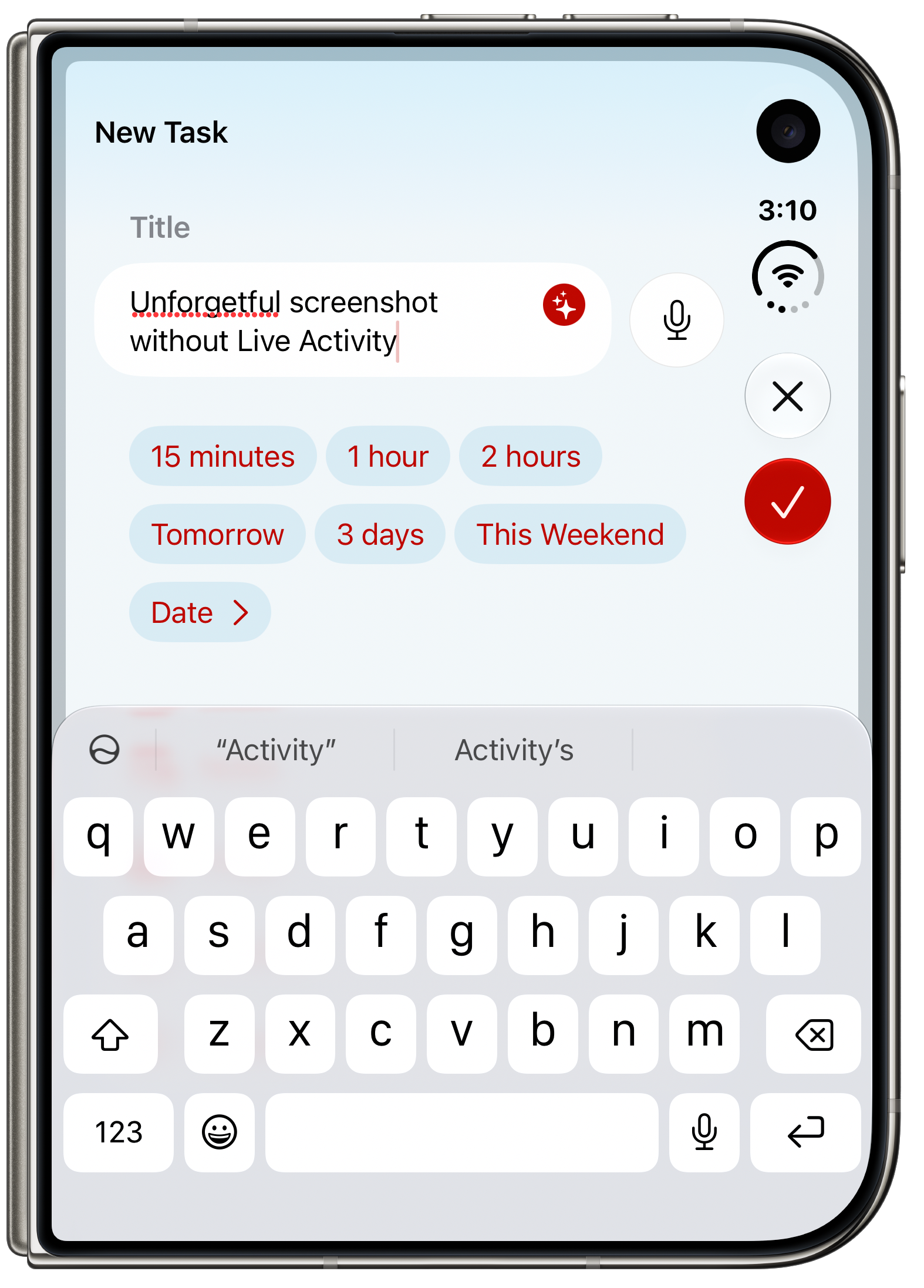
Here’s another example. Unforgetful is Marco Arment’s new reminders app. I like it a lot, and have been using it extensively since the summer. It’s properly updated to support the Duo UI layout. Here’s what it looks like when you’re creating a new task, normally:
But here’s what I saw over the weekend, when I was out running a Vonnegut errand, listening to The Vergecast:
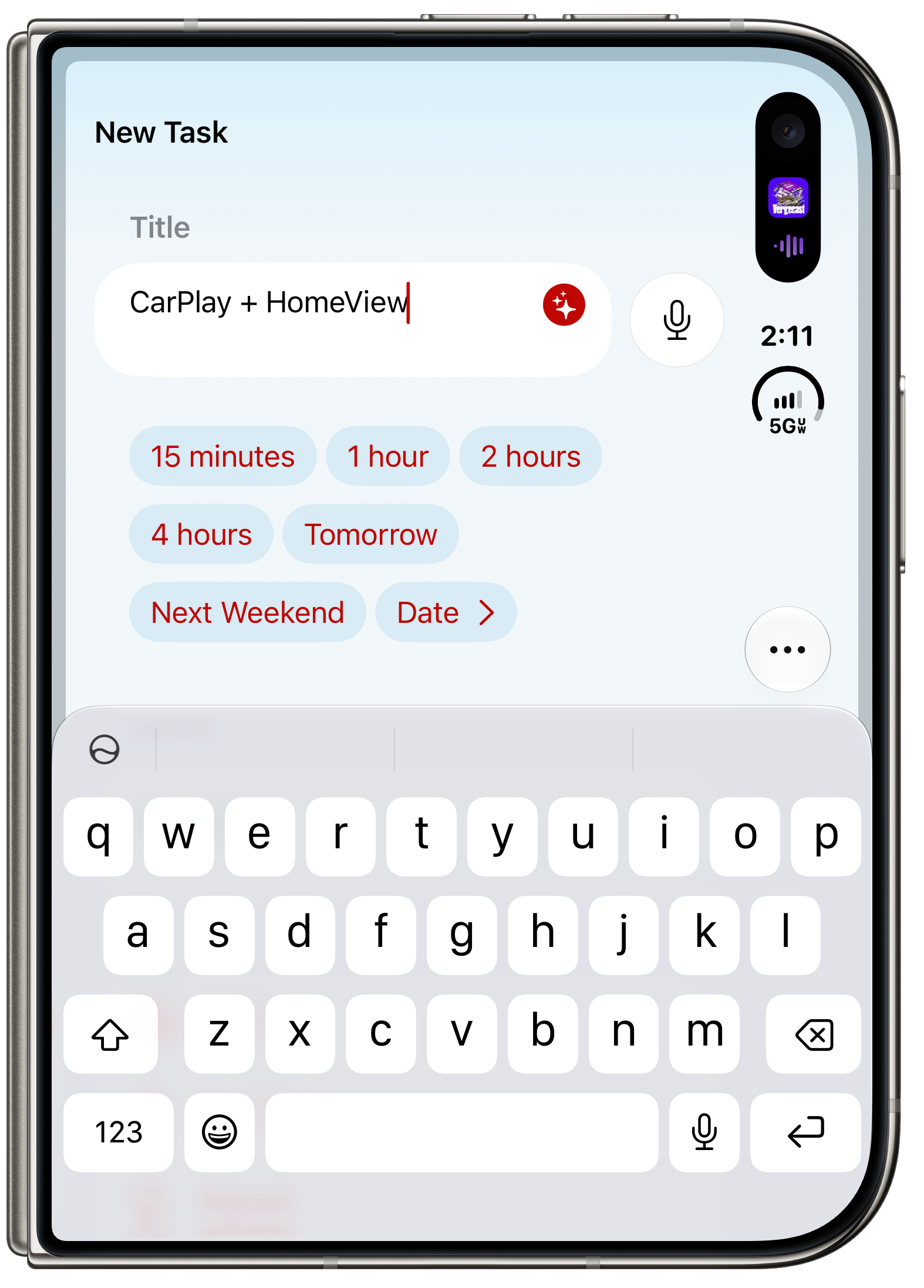
I spent almost an entire minute trying to figure out how to save this task. I was about to text Arment with a bug report, that new tasks were unsaveable on the Duo, when I realized what happened. Because I had a Live Activity showing for the podcast I was listening to (in Arment’s Overcast, natch), the system’s time and circular status indicator were pushed down, reducing Unforgetful’s toolbar area, which meant the two buttons, “✕” and “✓” (for Close and Done, respectively), were collapsed into a single “···” overflow button. Tapping the dot-dot-dot button reveals them:
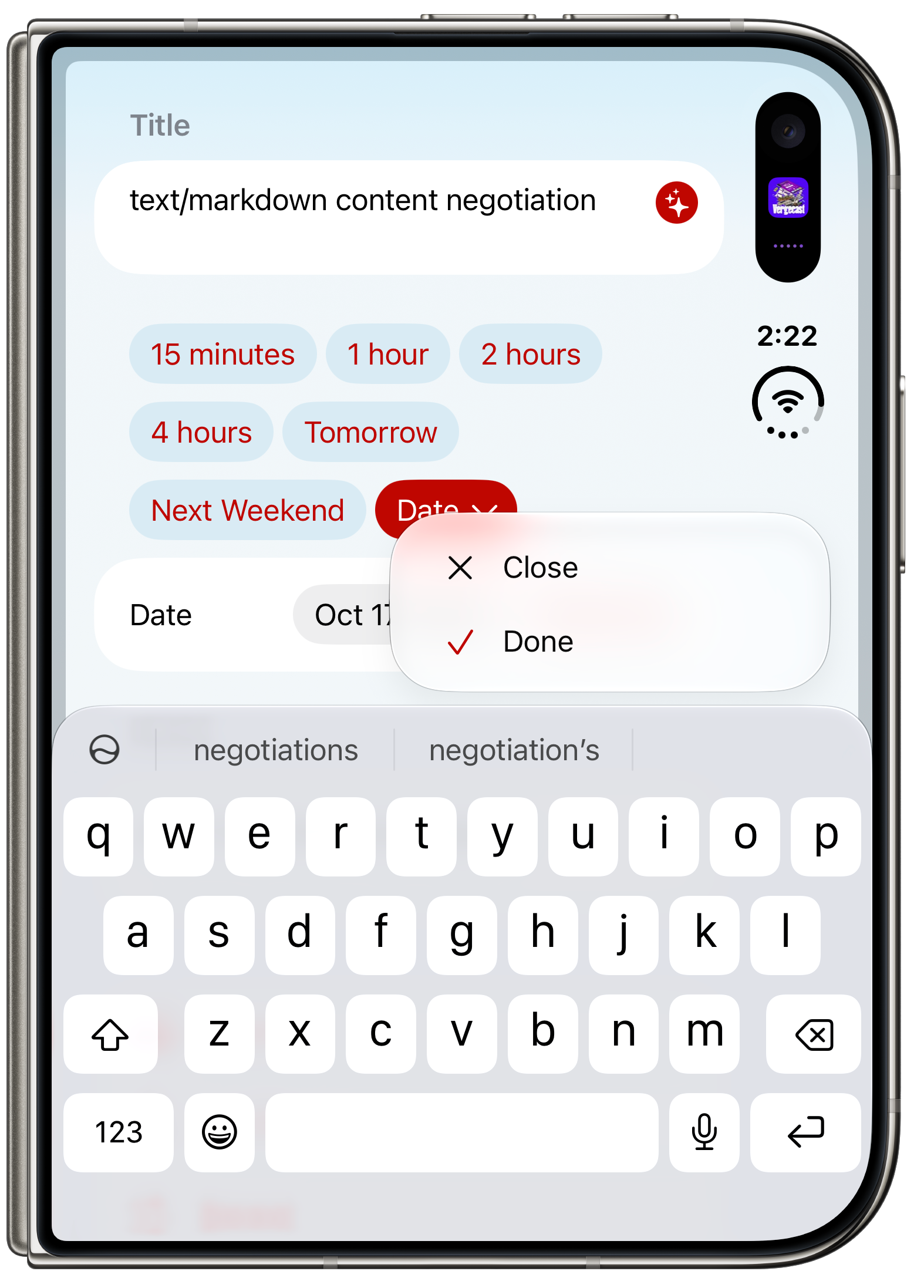
So the outer Duo display is so cramped when the keyboard is on screen that with a Live Activity showing, there is no longer room for a single pair of toolbar buttons. That turns a lot of one-tap actions into two-tap actions. And initially at least, it’s confusing. The whole point of Unforgetful is that it is not a complicated app. It really took me a minute to figure out that the Done button had moved into the “···” overflow menu.
One more examination of screen real estate, this time, with Messages, with the on-screen keyboard open. How much of the current conversation can you see?
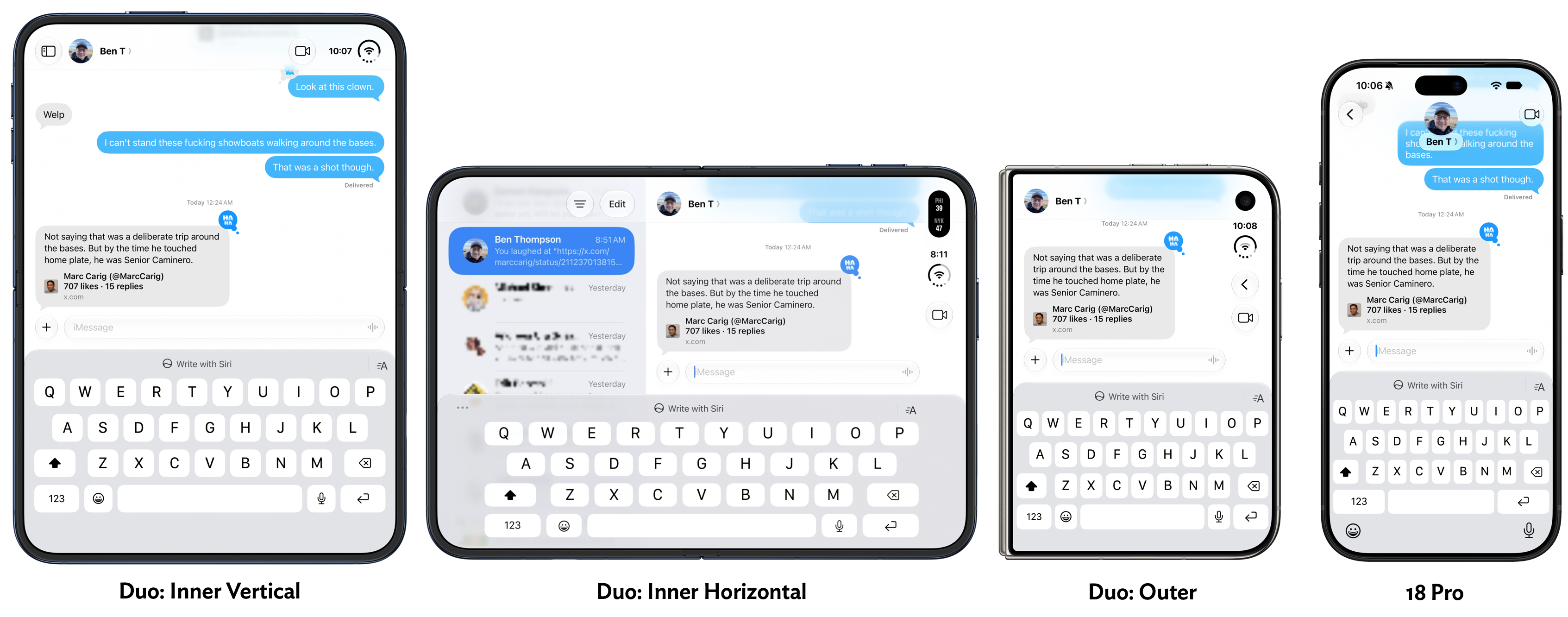
The Duo outer display has only a smidgeon of real estate available for showing previous messages. It’s a bit like using an ancient BlackBerry. The Duo inner display in horizontal mode doesn’t show much more, but all you need to do to see more is rotate the device (which makes it easier for thumb-typing anyway).
Using the Duo Open, With the Inner Display
Once the Duo is unfolded and unlocked (more on that below), it’s a terrific experience. I absolutely love the nano-texture finish. I love how it looks, and I love how it feels.
At the outset of this review, I opened with a list of obvious problems for any foldable device. I omitted the one vexing problem that Apple has solved: annoyance at a visible crease. They solved it by applying this nano-texture finish (which apparently is an easily replaceable surface layer). But it’s not like this is a trade-off that makes the display look bad or feel weird. I’d love a display that looks and feels like this on my non-foldable iPhone 18 Pro. No glare, even in sunlight. It’s amazing. There’s no accounting for taste — some people love glossy reflective displays that draw glare from any and all light sources. Not me.
No foldable phone on the market had a matte inner display until the Duo. I suspect most of them will next year, and by 2028 all of them will.
I mentioned above how close the open Duo is to the size and weight of an iPad Mini (a little smaller in size, but 15 percent lighter in weight). It just feels like a great little tablet, and this general size class has always been great for reading. Most Kindles and other e-ink readers are about this same size. I love reading on the Duo inner screen, vertically.
The Duo is great horizontally too. One obvious use case is video. Watching video, it’s easy to forget it’s an iPhone, not an iPad. Here’s as good a place as any to mention that the Duo’s speakers are great. Loud and separated. It produces surprisingly good sound for such a thin device.
Held horizontally, the iPhone Duo supports side-by-side multitasking with two apps. The user interface for this feature is brilliant. It puts every idea Apple has tried on iPadOS for multitasking to shame.
From 2010 to 2015, the iPad behaved like a big iPhone, showing only one app at a time on screen. This was limiting, yes, but delightfully simple and obvious. In 2015 with iOS 9 (this was before Apple renamed the iPad’s variant of iOS to “iPadOS”), Apple introduced both Slide Over and Split View. Both of them stunk. They stunk so bad that if you gave them a ride, you’d have to sell your car afterward. They were confusing and unintuitive. Slide Over in particular was often invoked accidentally and users couldn’t figure out how to get rid of it.
Even the newest iPads of the time (iPad Air 2, iPad Mini 4) still had Home buttons — the all-screen design without a Home button wouldn’t arrive until the iPhone X debuted in 2017, and it didn’t arrive for iPads until the late 2018 iPads Pro. The Home button was the key to all iOS interaction at the time. To launch an app, you tapped its icon on your home screen. To go back to your home screen, you clicked the Home button. You double-clicked the Home to enter the app switcher. If you think about it, you can see how the Home-button-centric iPad hardware was incompatible with the idea of split-screen multitasking. Once you have two apps on screen at the same time, how can you control them with just one clickable Home button? What if you had, say, Notes on the left and Safari on the right, and you wanted to close Notes and replace it with Mail, while keeping Safari open on the right? How could the system know which one you wanted to close when you clicked the one Home button? The answer is it couldn’t. So Apple devised all sorts of other convoluted ways to manage this. I don’t even remember how it worked except that it was confusing and frustrating. Re-reading this old iPad developer documentation makes it seem even more unintuitive than I remember.
I was about to quip that whoever at Apple designed and approved of these multitasking UIs set the entire iPad platform back by a decade. Then I realized that, actually, it was more than a decade. The iPhone Duo is debuting 11 years after iOS 9’s terrible iPad multitasking, and only now has Apple designed and implemented a split-screen multitasking interface that is actually good. Split screen on the Duo is intuitive, natural, useful, and mostly obvious. In addition to all those accolades regarding how you purposely invoke and use it, it also is an interface that you seem unlikely ever to get into accidentally. Comparing the multitasking UIs on the Duo to the iPad is like comparing the Mac to Windows — one is insanely great, the other a dog wearing a necktie pretending to be a person. Apple should throw out iPadOS’s multitasking interface and switch to this one. Honestly I’d prefer if they just threw out iPadOS and went back to running iOS — this new version of iOS created for the Duo — on iPads. The Duo flavor of iOS is a better tablet OS than iPadOS, Apple’s dedicated tablet OS.
On the Duo, split screen is only available when the device is horizontal. It’s always split 50-50. Each side of the screen gets an app that is basically the size of an app open on the outer display. Elegant. To move an app into split view, you drag the home indicator up from the bottom of the screen — the same gesture that takes you back to the home screen. But instead of letting go, you keep dragging. You get this:
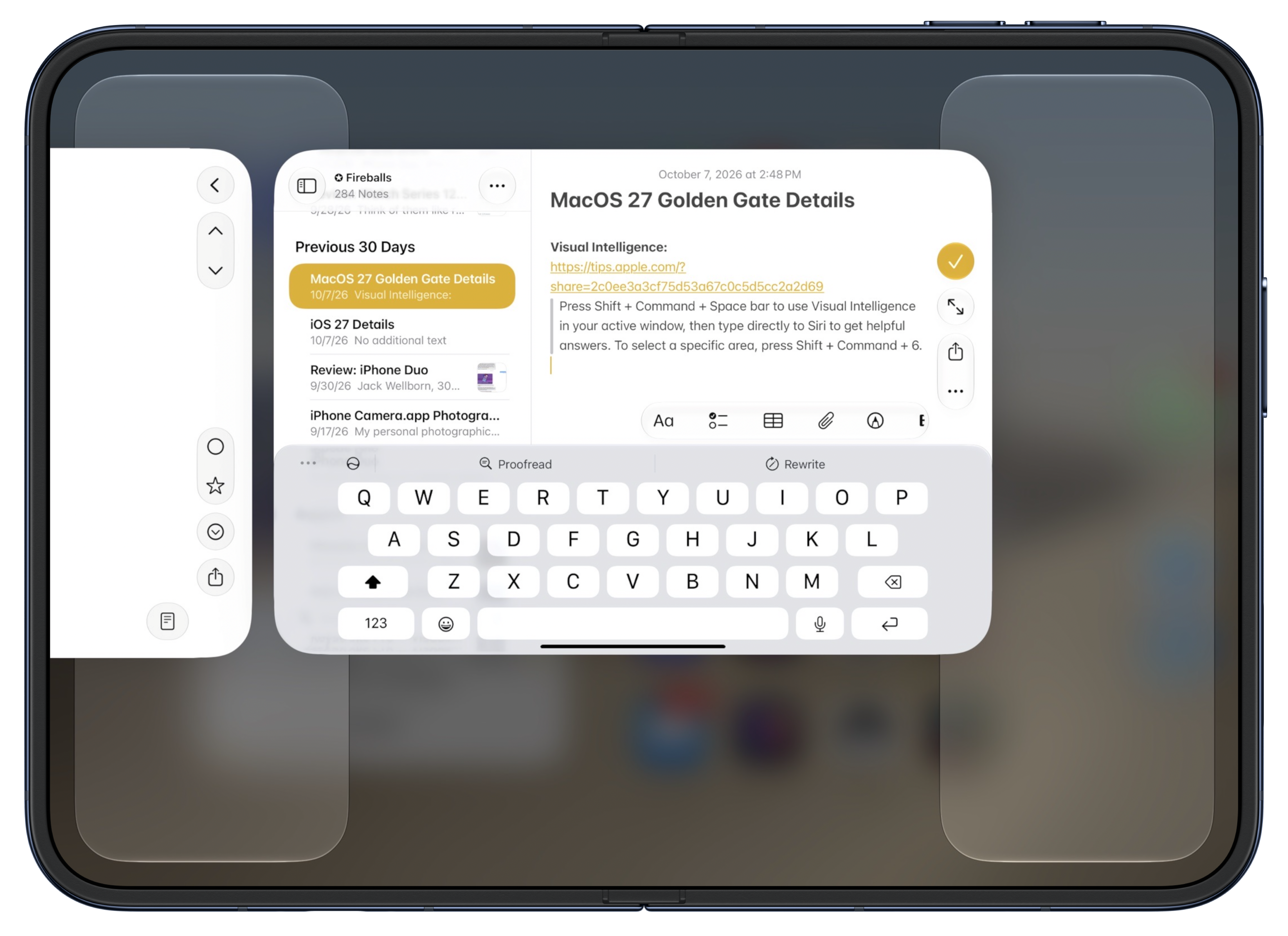
Those shelves on the left and right are drop targets. Drag and drop the current app to either side to put it there and enter split screen. The other side of the display just shows you a single-screen home screen:
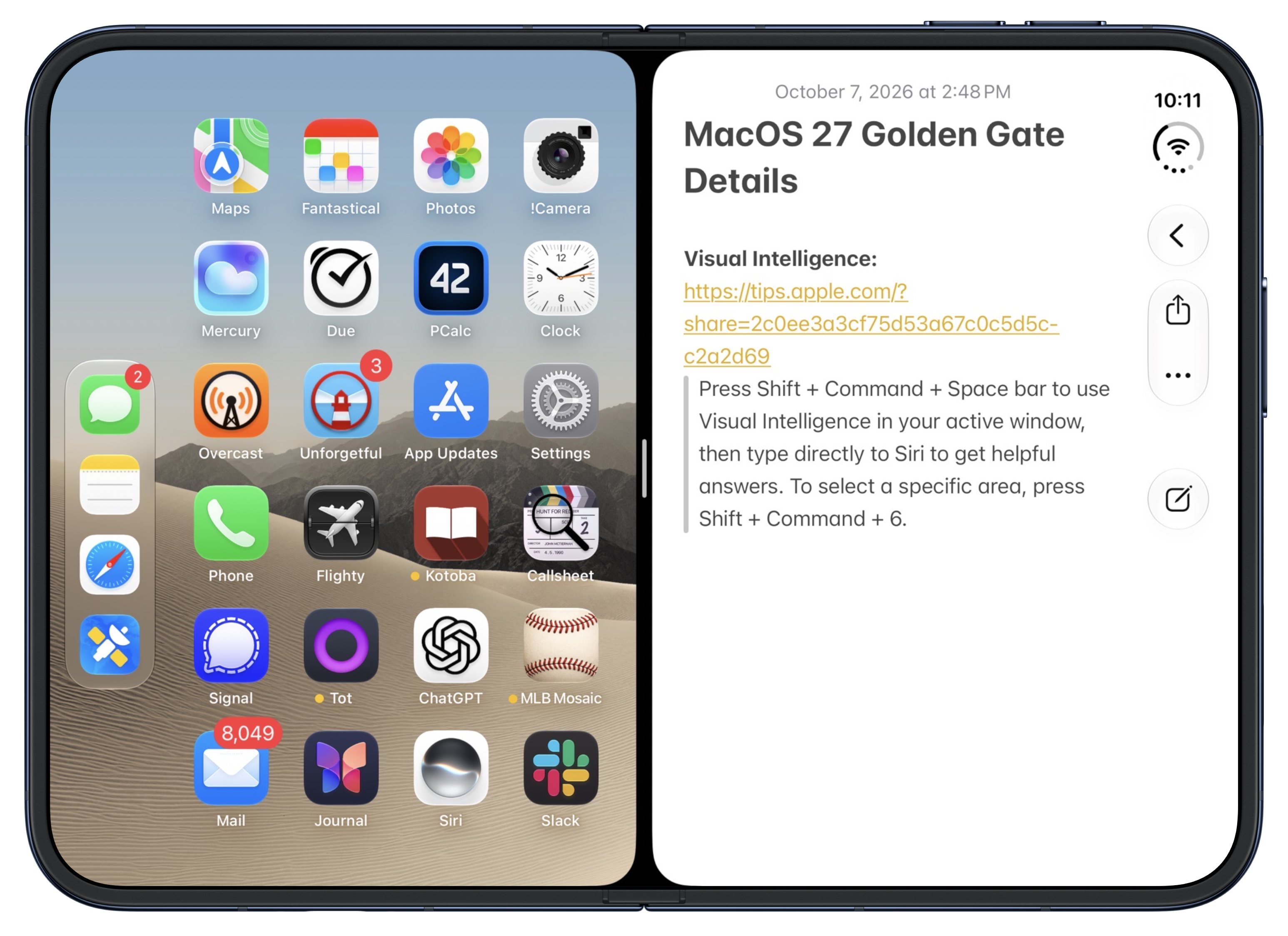
To open an app on that second screen, you just tap it. There is no step 2. Once you enter split screen mode, it’s like having two closed Duos side-by-side, except the left-side one is a reverse D shape. When the left side is open you can see that the Duo toolbar/Dock bias is not “put it on the right side”. It’s “put it on the outer side”. It just so happens that on the outer display, the right side is the outer side (with rounded corners, away from the spine). Open a second app, and that app’s toolbar will go on the left, if the app is on the left:
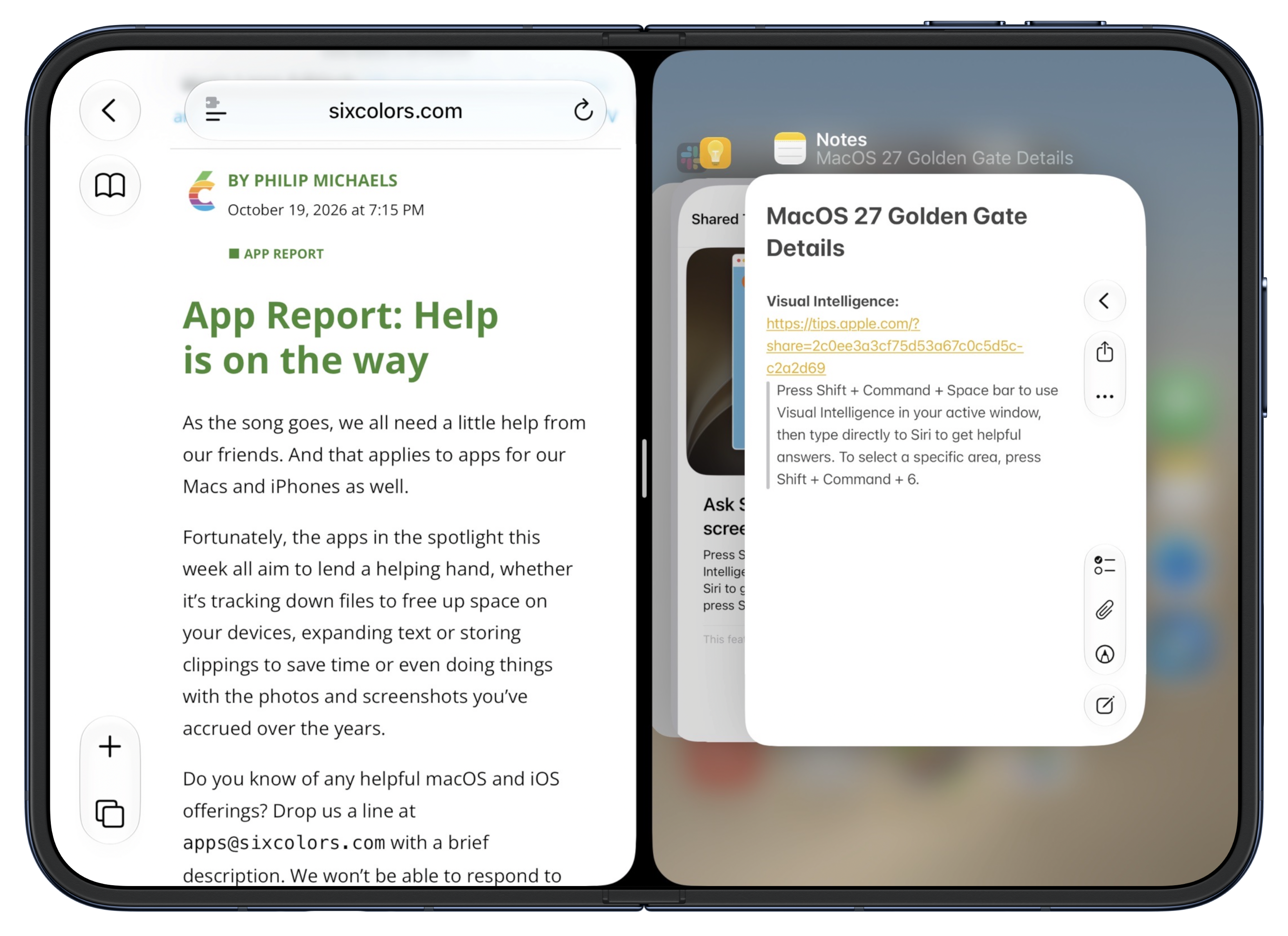
Each side of split screen acts like its own iPhone Duo. Drag up from the bottom of a side and you can go back to the home screen on that side. Or, as shown above, you can enter the multitasking switcher interface on that side — and it’s smart enough not to show you the app that is already open on the other side. Drag up from the bottom center and you return to the full-screen home screen or full-screen app switcher. Whatever you think ought to work, probably works. That’s intuitive design.
There is more to explore and think about here. These are not “windows”. But you can open the same app on both sides, like to show two Safari pages side-by-side. What this split screen UI gets fundamentally right is that it works exactly like using the iPhone for one-app-at-a-time launching and switching. The iPad’s original split-screen sin was trying to implement multiple apps on screen at the same time when the iPad still used a hardware Home button. With the modern iOS UI, where the physical Home button has been replaced by virtual on-screen home indicator bars, you can go from one home indicator (when there’s only one full-screen app) to three: one for the app on the left, one for the app on the right, and a third in the center to control them both as a pair. It’s so brilliant that most users won’t notice that there’s anything clever about the design at all. They’ll just use it. That’s the highest praise for an interaction design like this. It seems so obvious that it doesn’t seem designed at all.
Ironically, because iPhone Duo is not called an “iPad”, it gets to be what the iPad should’ve been all along.
The biggest problem I have with using the Duo on the inner display is an incorrect intuition that, after a full week of use, I am only now starting to break. What do you do when you’re done with a book for now? You close it. So what do I do when I’m done using the iPhone Duo, unfolded, before putting it in my pocket? I close it. But that doesn’t lock the Duo. It just switches to the outer display. I feel like I’ve done this a hundred times in the last week. I close it, thinking that I’ve locked it, and I put it away. But it’s still open. It eventually locks — perhaps sometimes quicker than you think. (iPhones have long used a bit of machine learning to try to detect when they’ve been pocketed or pursed while unlocked, and lock themselves before the normal auto-lock timeout.) Nothing bad has happened from doing this. But I’ve opened it up to some odd things on screen. This is not a complaint about Apple’s design, because when you want to switch from using the inner display to the outer display, you should be able to just close it. The iPhone Duo can’t read your mind. But I wish it could read my mind.
Touch ID and Authentication
The lack of Face ID on the iPhone Duo is an endless unceasing frustration. I’ll just farm this section out to what I wrote back on September 15, days after the Duo was announced, in my thoughts and observations column on Apple’s event announcements:
The lack of Face ID is a serious sad-trombone bummer, and in my opinion could sink the first-generation model. Side-button Touch ID is OK, but OK is not good, and even good is not insanely great. Face ID is insanely great. For whatever reason, the only iPads with Face ID are the iPad Pro models. Every time I review an iPad Air or iPad Mini, my biggest gripe is the lack of Face ID. I complained about it reviewing the iPad Air in 2022 and the iPad Mini in 2021, and in the five years since then my annoyance has only grown. With Face ID, so long as you’re looking at the screen as you unlock the device, it’s like not having it locked at all. It just unlocks, seemingly automatically. With Touch ID you must think about putting one of your registered fingers on the button every single time you unlock it. It never ever feels automatic. I feel quite certain Apple tried to fit a Face ID sensor on the outer Duo display and could not make the engineering work.
I’m much more concerned about convenience than security, but Face ID is 20× more secure than Touch ID. That’s according to Apple’s own Apple Platform Security whitepaper, updated just last month, which states:
The probability that a random person in the population could unlock a user’s iPad, iPhone, or Apple Vision Pro is less than 1 in 1 million with Optic ID or Face ID — including when Face ID with a mask is turned on. For a user’s iPad, iPhone, Mac models with Touch ID, and those paired with a Magic Keyboard with Touch ID, it’s less than 1 in 50,000. This probability increases with multiple enrolled fingerprints (up to 1 in 10,000 with five fingerprints) or appearances for Face ID (up to 1 in 500,000 with two appearances).
As a sign of how inconvenient the lack of Face ID is, Apple is promoting the fact that the iPhone Duo can be unlocked by your Apple Watch, like a Mac. No other iPhone needs such a crutch. Based on my experience with Touch ID iPads, wearing an Apple Watch all the time to unlock the Duo will feel essential. I don’t wear an Apple Watch all the time, and don’t want to start wearing an Apple Watch all the time, so I suspect this alone will keep me from switching to an iPhone Duo personally. On the other hand, for people who do wear an Apple Watch all the time and are happy to do so, the Duo’s lack of Face ID might prove to be only an occasional inconvenience rather than a constant annoyance.
I’ve seldom been more prescient. More than anything else about the Duo experience, I despise the lack of Face ID. It is a dealbreaker for me. I’ll reconsider a future model that at least has Face ID on the front outer display, but I have no plans to purchase this one. I tried to keep track in my pocket Field Notes notebook how many times I had to be told to authenticate with Touch ID, along with a separate tally of how many times I had to enter my full device passcode in situations where I know I would not have with an iPhone uno, and I ran out of space on the sheet of paper. If you are not wearing an Apple Watch, it is an unceasing frustration.
Apple actually made a TV commercial exemplifying the Touch ID experience on iPhone Duo 20 years ago, as part of the “Get a Mac” campaign with John Hodgman and Justin Long. Here, you can watch it on YouTube. Over and over and over, seemingly 20,000 times a day: put your goddamn finger on the Touch ID button.
Now, if you do wear an Apple Watch, and you pair it with your iPhone Duo, and you enable the off-by-default setting to allow your watch to unlock your Duo, this is much better. It’s not good, but it’s at least tolerable. If you have multiple iPhones though, this feature only works if your watch is paired with your Duo. This is a fundamental shortcoming in the architecture of WatchOS. Apple Watch should be like AirPods, where it just pairs on-the-fly with whatever device you’re currently using, so long as they’re signed into the same Apple Account. You don’t have to pair your AirPods to one single device and then completely factory reset them to use with another. AirPods wouldn’t be a hit product if that were true. But that’s how Apple Watch works. It’s true that most people only own one iPhone, but the existence of the iPhone Handoff feature is proof that Apple is thinking about the fact that some of us own more than one. If one of them is a Duo, you will want to pair your Apple Watch with the Duo. But that means that with iPhone Handoff, your Apple Watch won’t share a cellular connection when you’re using your other iPhone. Cellular carriers are now more adept at seamlessly dealing with multiple iPhones than Apple’s own watch. It’s a complete mess of Apple’s own making.
The unlock-with-Apple-Watch feature doesn’t work all the time for me. When it does work, you know it, because you get a tap on your wrist from the watch every time your Duo unlocks via the nearby watch. But sometimes, even though I haven’t taken my watch off since it last unlocked the Duo, it doesn’t work, and I have to use Touch ID. Oftentimes, for reasons I do not understand, Touch ID isn’t enough, and I have to enter my passcode. I think it’s because I so often inadvertently press the side and Camera Control buttons while folding and unfolding the Duo — that might put it in a state where it wants to authenticate the most secure way possible, with my passcode.
It’s mildly annoying that your Apple Watch taps your wrist every time it automatically unlocks your Duo (dozens and dozens of taps per day, every day), but it’s obviously a good thing that it does. It obviously is less secure than Face ID or even Touch ID. I handed the Duo to my son to play with the hinge over the weekend, and as soon as he started playing with it, my wrist tapped. Oops, the whole iPhone was unlocked for him. That was no big deal, and in fact we shared a laugh about it. But it couldn’t happen with Face ID or Touch ID.
There’s also an optional feature where you can unlock the Duo just by “resting” a registered finger on the Touch ID button. This does add a touch of convenience (again, I swear no pun intended), when I remember to do it, but this too doesn’t seem to work all the time. My theory is that sometimes I’m resting my finger on the button and the sensor doesn’t think the finger is a match. Other times, I wind up unlocking the Duo inadvertently, just by holding it with my thumb on the button. I never ever unlock my iPhone Pros accidentally. With the Duo, it happens at least once a day.
The only tolerable way to use the Duo is by always wearing an Apple Watch, and enabling the feature to allow the watch to unlock it. I do not want to wear an Apple Watch all day every day. And it seems ridiculous that that’s the only way to make the Duo experience tolerable. As annoying as it is to use an iPad with a Touch ID button, it’s far more annoying to use an iPhone with one, because I unlock my iPhone at least an order of magnitude more frequently than I do my iPad.
I’ll reconsider a future Duo model that at least has Face ID on the outside, but I don’t think I’ll ever truly enjoy the experience of using one unless it has Face ID on both sides. I can’t wait to finish writing this review, switch my eSIM back to my iPhone 18 Pro, and set this Duo aside on my desk. I don’t think Apple should have released the Duo until they figured this out.
Buttons and Camera Orientation, the Hinge, and the Cameras Generally
My Touch ID complaints are exacerbated by the fact that, from an experiential standpoint, the side button keeps moving around. When the Duo is closed, button placement isn’t a problem. But when it’s open, the buttons feel wrongly placed. On a Touch ID iPad, held vertically, the button is on the top on the right side. And from there, to switch to horizontal orientation, you rotate it counterclockwise, which moves the Touch ID button to the left side, at the top. But this is all backwards on the Duo. Held vertically, the Duo’s Touch ID button is on the top on the left side. And you have to rotate it clockwise to get it back to horizontal. I’ve gotten more used to it after a week, but while using the big inner display, whenever I’m pestered to authenticate with Touch ID — which, again, is all the time — there’s also a moment of “Wait, where is the Touch ID button?” Many times throughout the week, while holding it vertically, the Touch ID button has been on the bottom, because my instincts for how to rotate it from horizontal to vertical and vice-versa are backwards from how the Duo intends. It’s like the Duo has a built-in game called “Where Are the Buttons?”, and it’s not a fun game.
The main camera orientation is more frustrating, and I consider it a mistake. The main camera is aligned with the small outer display. When you’re capturing photos or videos using the outer display, you hold the Duo horizontally to capture horizontal images, and hold it vertically to capture vertical images. But when you open the Duo, the camera sensor doesn’t magically rotate. So when you’re using the big inner display, you capture horizontal images when holding the Duo vertically, and vertical images when holding the device horizontally.
You can’t have it both ways. Apple needed to choose which display to align the camera with. Apple reps told me they chose to align it with the outer display because they think that’s the display users will use most often when using the camera. They’re probably right that the outer display will be used most frequently with the camera, so maybe they made the correct decision here. But my gut feeling is they should have aligned the camera the other way. Let the outer display have the reverse camera orientation. That would feel like an old Flip camera from 20 years ago — a small handheld camera that you held vertically to capture horizontally. Who cares if the viewfinder doesn’t fill the screen, the screen is tiny anyway.
It just seems weird to me that you can open the Duo to have a truly huge viewfinder, and there’s no way to fill it. Here’s Apple’s own Camera app, when the Duo is open vertically, open horizontally, and closed:
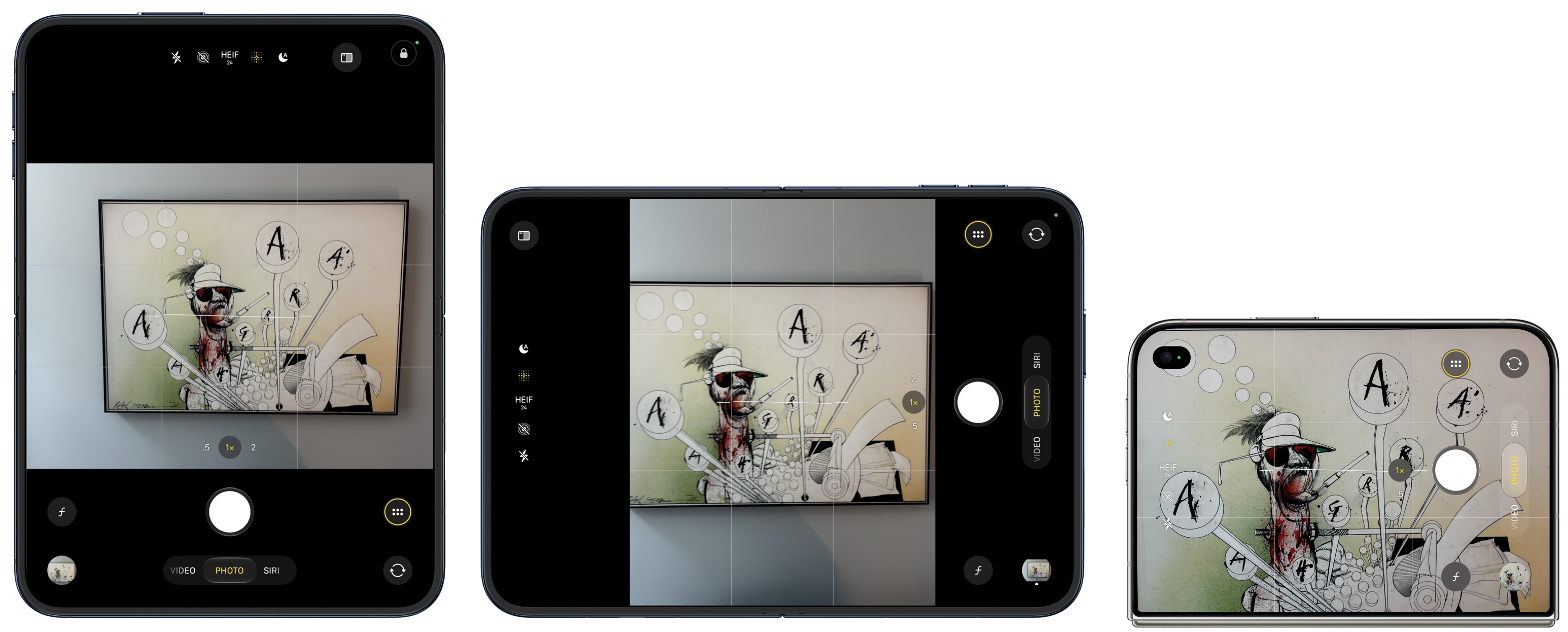
So with the big inner screen, you can never come close to filling the screen with the image you’re trying to capture. You get thick black letterboxing or pillarboxing. The viewfinder preview is roughly the same size on the inner screen as the outer screen, despite the inner screen being twice the size. This doesn’t make sense to me. I would prefer a tiny preview on the small outer display and a huge preview on the large inner display, with the camera sensors aligned with the inner display.
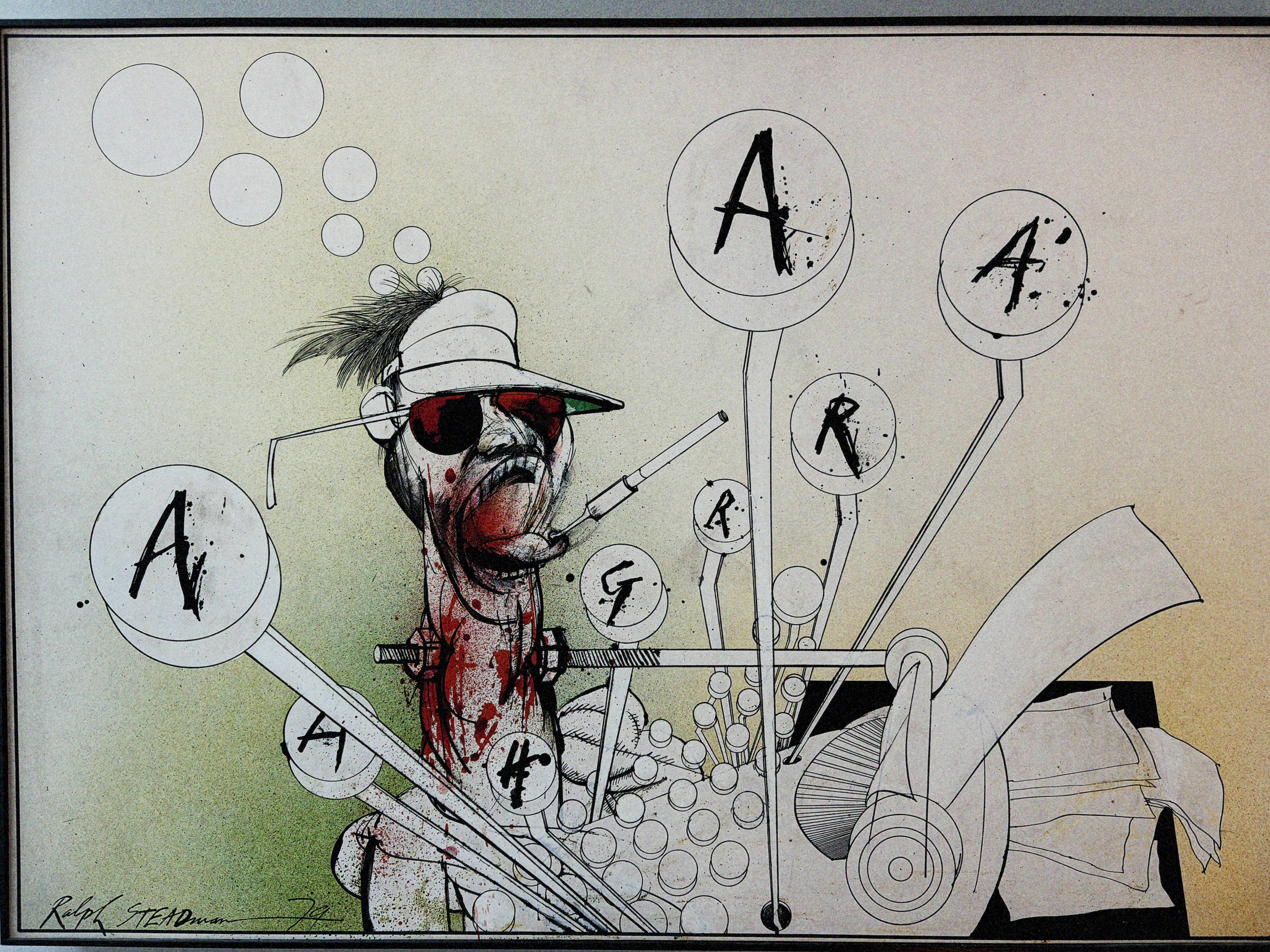
Also, because the outer screen is a different aspect ratio than the camera sensor (1.4:1 display; 4:3 sensor), photos taken using the outer screen capture a slightly larger image than what is shown in the viewfinder. That’s because the outer screen viewfinder presents a full-screen preview, which forces all of the Camera app controls to overlay the preview image. In the screenshot above showing the Camera app on the outer display, the actual photograph from that perspective includes part of the painting frame, even though you cannot see any of the frame in the preview. Here’s the photo I snapped from that vantage. This discrepancy between the viewfinder and the actual captured image is not a huge deal — it’s OK to capture more than the viewfinder shows — but it’s worth being aware of.
As for the camera itself, it’s terrific. It’s clearly not of the same caliber as the iPhone 18 Pro, but it’s good. The technical specs of the Duo’s main 1×/2× camera are nearly identical to those of the year-ago iPhone Air, and I love the iPhone Air’s camera. If anything, the Duo’s camera should be better, because it gets the year-better A20 Pro imaging pipeline. Which, notably, brings support for the same new Photographic Styles, including textures like film grain, that were introduced with the iPhone 18 Pro.
Also, notably different from the Air, the Duo has an ultrawide 0.5× second camera lens. This brings both the ultrawide perspective and macro photography. Like the Air, the Duo’s main 1× camera has a minimum focus distance of 15cm. That’s closer than the 17 and 18 Pro cameras (20cm), but there are a lot of times you want to snap photos of receipts or documents closer than 15 cm. With the Air, you can’t. With the Duo, you can.
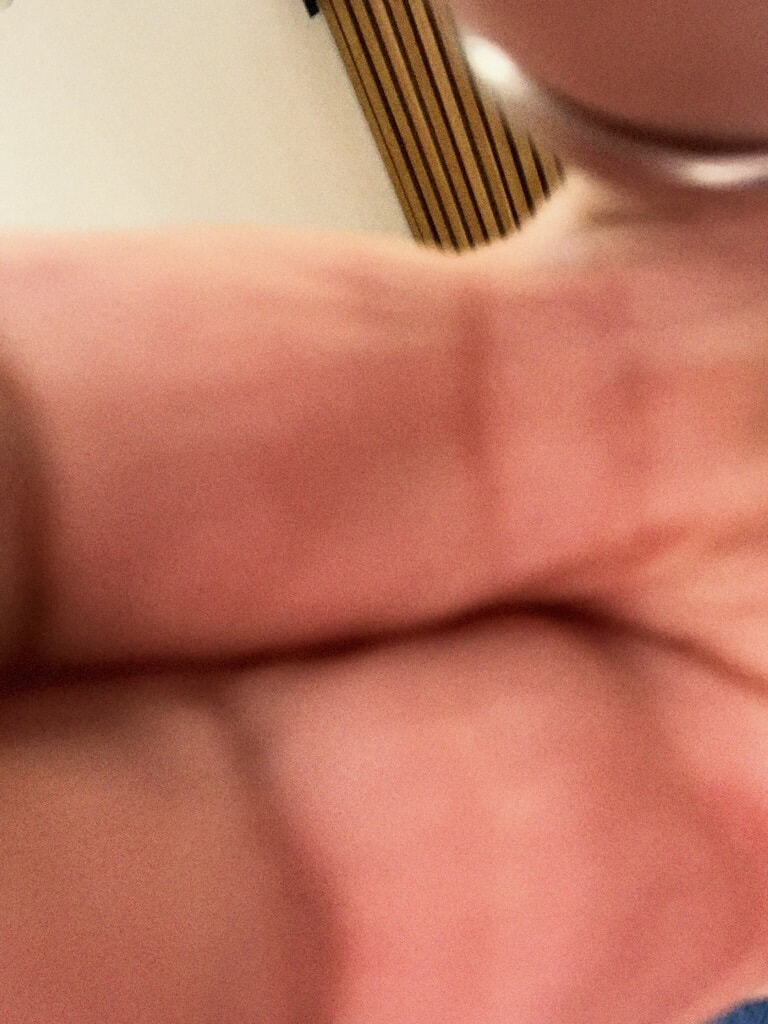
Build quality of the Duo seems nothing short of excellent. It’s solid. It has a satisfying feel opening and closing, and it closes with a particularly pleasing snap. When it’s open it stays open and perfectly flat. When it’s closed it stays closed, with no gap. However, if forced to choose between the verbs flip and pry to describe the force necessary to open it, the more accurate verb is pry. You need two hands for sure and you kind of need to get your fingernail in the gap. It’s also tricky to open or close without inadvertently pressing the side or Camera Control buttons. I wind up clicking both of these buttons all the time, and sometimes it messes things up. I’ve snapped four accidental photos with the Camera Control button while trying to close (or open? not sure) the Duo in one week. I have zero such photos from the last 30 days taken with my iPhone 18 Pro. At least one of these even looks obscene at thumbnail scale, which gave me a momentary jolt when I saw it in my camera roll:
There’s a subtle plastic lip around the inner display. This keeps the corners of the display from smacking into each other when you close it, and in practice while the Duo is open, this lip actually feels good to the touch, not like an unwanted barrier.
The same cannot be said for Apple’s $80 first-party silicone case. I can’t believe anyone will want to use this. It adds such a big lip to the outer display that you need to go into Settings → Display & Brightness and turn on a special option: “Shift Left Edge”, which shrinks the front display away from the left edge. It even requires glue to keep it attached. The adhesive is not particularly sticky — you can pop it right off — but I mean, come on. This contraption is ridiculous. I’ve never been a regular case user with my iPhones and I think people worry needlessly about scratches, especially now with Apple’s Ceramic Shield 2. I firmly believe that putting a case on your phone makes you more likely to drop it because you’re less likely to be careful with it. But foldable phones in particular seem inherently incompatible with cases that are subtle rather than obtrusively prophylactic.
Apple’s $130 folio case is better. It’s made with Apple’s “TechWoven” fabric, which has a good high-quality feel. It’s got a kickstand that I guess might be convenient at times, but I don’t understand the lifestyle where you want to open a cover just to see the front face of your phone every time you use it. Also, it’s $130.
Live a little, I say. If you buy a Duo, try it without a case. Get AppleCare if you’re the nervous sort.
The App Situation
Using apps that haven’t been updated for the iOS 27.0 SDK is a terrible experience. They just look like little virtual iPhone Minis floating in a sea of black on the big inner display. You can zoom them, like the old “2×” button on iPads when running iPhone apps, but that stinks too. Apps that have been compiled for the 27 SDK but haven’t yet updated to the new Duo-specific APIs in the 27.1 SDK are ... OK. But even some of them blow. Take a look at the NYT Games app, and its custom crossword keyboard — it needs an orthodontist. Most of my favorite apps have already been properly updated for the Duo. Some, however, like Tapbots’s Ivory, have not. Your bank probably won’t support the Duo until the Duo 2 is out next year. I think Apple has clearly done a great job evangelizing developers to support the Duo properly. Netflix does and it’s really cool. WhatsApp is in that middle state, where because it’s been compiled with the 27 SDK, it at least fills the inner screen, but it’s just a scaled regular iPhone layout. Signal, which has always been a particularly crummy app, is one of the turds that looks like an iPhone Mini floating in a sea of black.
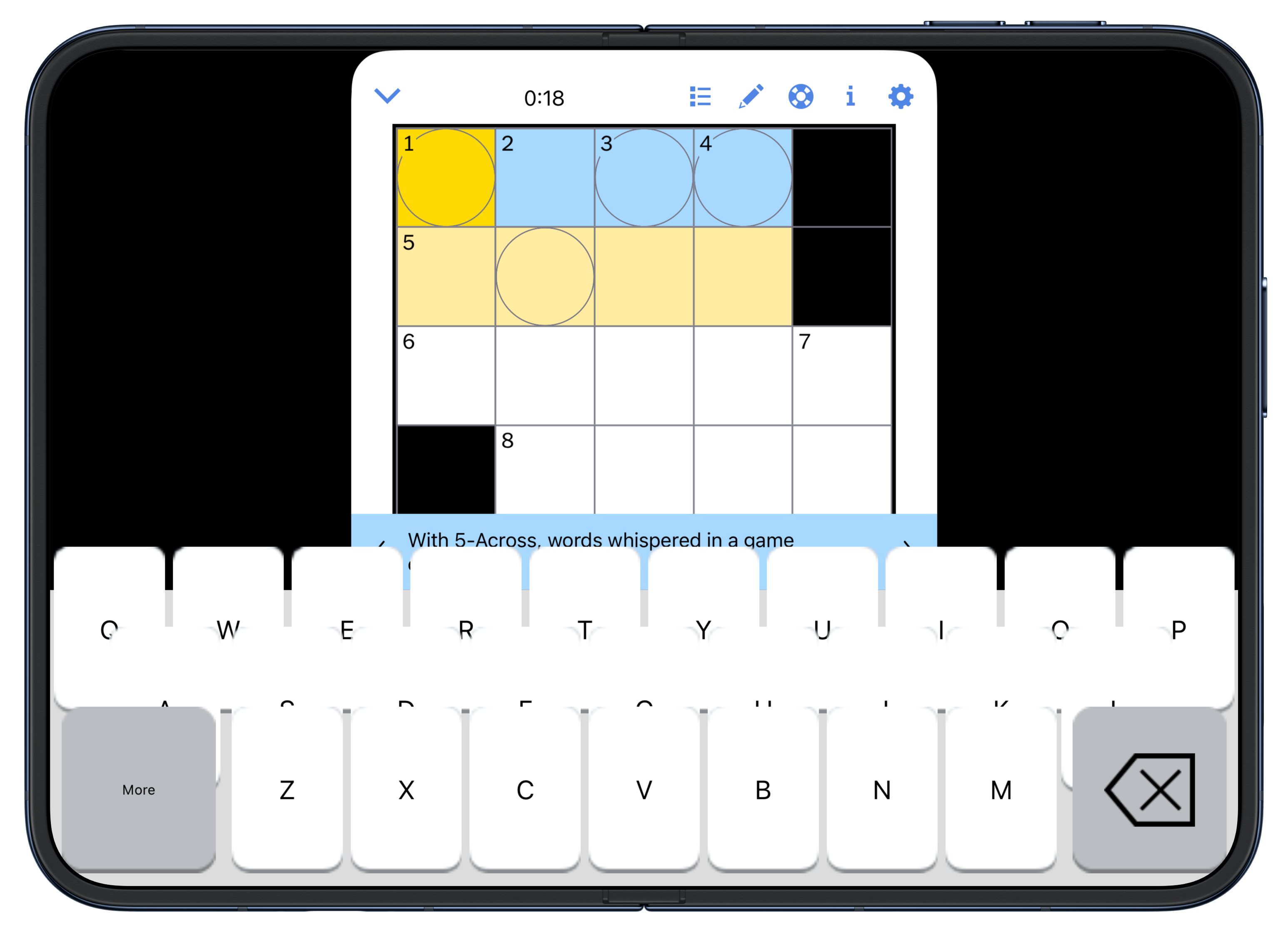
Last night I wanted to watch the Sixers beat the Knicks in their NBA season opener while I worked on this review. I had to use the NBC Sports app, which has not been updated for the Duo at all. The experience sucked. I could pop video out of the mini window to play sort of full-screen, but whenever I tapped the display it went back to iPhone Mini mode. The only good experience you can have using the iPhone Duo is with apps that have been updated for it. It’s better than nothing that un-updated apps run at all, but they certainly don’t deliver a premium $2,000-phone experience.
Using the iPhone Duo for this last week, in particular, has been fascinating in this regard. When I first got the Duo set up last Tuesday, very few of my third-party apps properly supported it. The ones that did were mostly ones where I was already a beta tester through TestFlight. As the week wore on, more and more apps with proper or at least semi-proper Duo support began appearing in the App Store. This made a huge difference to my pleasure using the device. By the time the very first Duo shipments reach actual customers this Friday, there will be more updated apps than there are today. It makes such a huge difference. I honestly don’t know how folks at Apple who’ve been privately testing the Duo for months before this managed to keep their sanity, unless they just eschewed third-party apps while testing it over the summer.
Miscellaneous
When you pair an external Bluetooth keyboard with the Duo, Command-Tab doesn’t do anything. I actually like pairing a hardware keyboard with my iPhone unos, for writing notes and Journal entries while I drink coffee in the morning. For years I’ve wished that iOS supported Command-Tab like iPadOS does. With the Duo, this seems like a glaring omission.3 The Duo plus a portable Bluetooth keyboard seems like an amazing travel or commute combination.
Standby mode (folded like a tent) is cool. In addition to Apple’s built-in clock/calendar/photo screens that you can swipe between in this mode, if you have a Live Activity going, you can tap the Live Activity’s small icon at the top in Standby mode and make the Live Activity take the full screen. “Laptop mode” is cool too, for apps like Netflix, so you can watch video on half of the inner display while the device is folded like an L.
There are so many nice little touches in iOS to support the Duo. Even the factory-fresh onboarding experience lets you fold and unfold it while you’re turning it on and setting it up. One of my favorite details is that when you rotate the Duo while on the home screen, the Dock doesn’t just move from the bottom (vertically) to the right (horizontally). Instead, it disappears and reappears, sliding in from off-screen in its new position. It reminds me of Pac-Man’s warp tunnel.
Battery life has been very good for me. No problem getting through a heavy day of usage at all.
The Duo often gets warm. Not hot, but noticeably warm. My instincts say “warm phone = bad for battery life”, but, per the previous item in this list, battery life is fine. There might be some use cases I haven’t spent much time trying, like graphics-intensive games, where thermals are a problem. But I didn’t run into them.
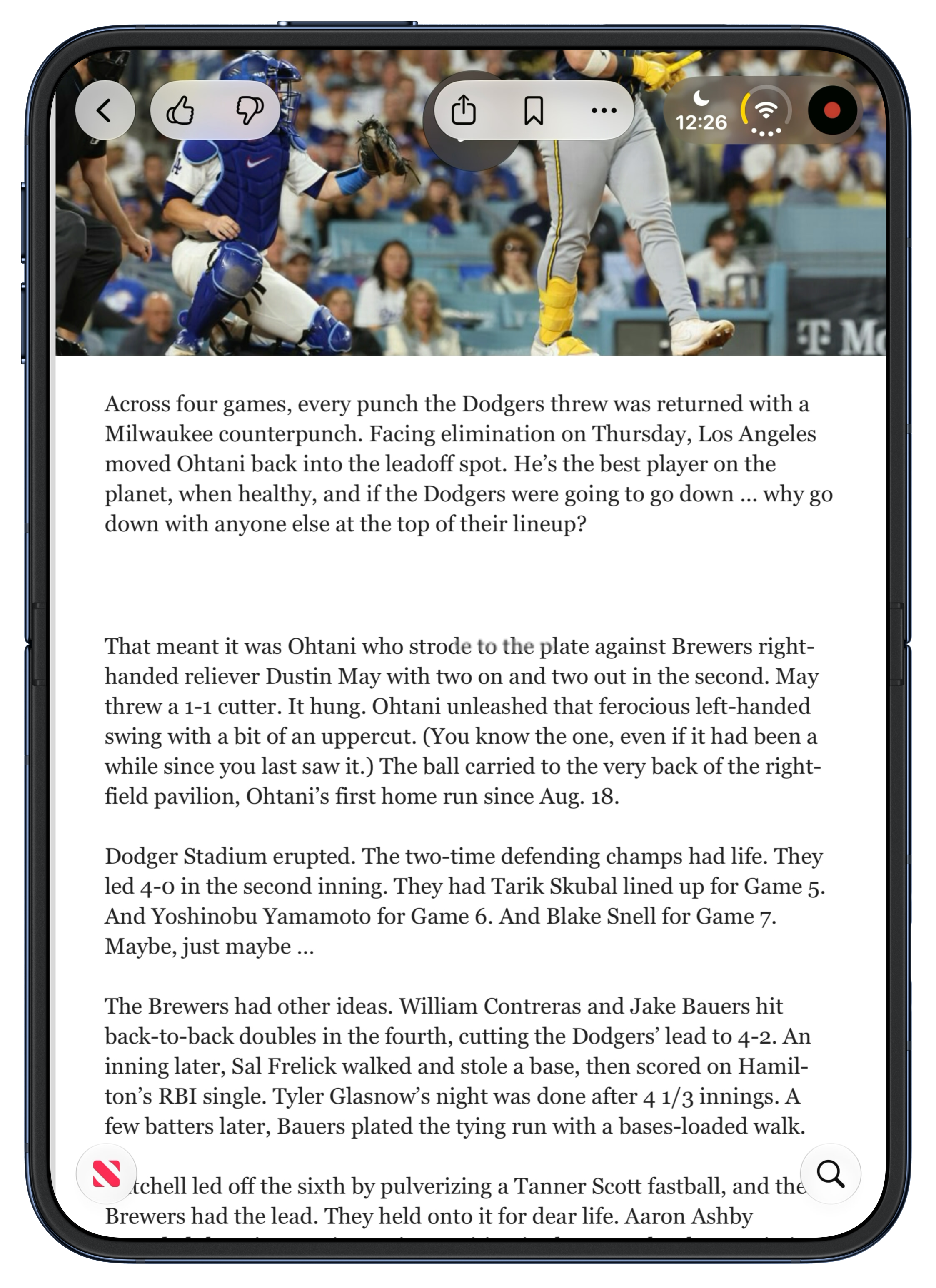
iOS 27.1 is a little buggy. Sometimes when I’m rotating the device using the inner display, apps get zoomed in too big, as though they think they’re on the small outer display or something. Tapping around or folding/unfolding again clears it up. I ran into one really weird rendering glitch, on Thursday night last week. I noticed what I first thought was a smear of schmutz on the crease. I tried to rub it away but it didn’t help. I thought for a few minutes that the display was breaking, coming detached right at the crease. But I only saw the smear when holding the Duo vertically. Horizontally it vanished. Here’s a screenshot showing it — look at the words “strode to the plate” in the first line of the second paragraph. If you zoom in, you can see that it’s actually a capsule-shaped overlay atop the text. Here’s a video screen recording of it while I scroll the article. This glitch was visible in the exact same position on screen — right on the 50-yard-line of the crease — in every single app I used while holding the Duo vertically. I took some screenshots and went to bed, without restarting the Duo. When I woke up Friday morning, the glitch was gone. I haven’t seen it, or anything like it, again. My theory is that I triggered it playing around that night with different “poses” for the Duo, including a bunch where I had it in an L- or V-shape, which in many apps puts a purposeful blur across the crease.

The Duo comes in two colors: star light (off white) and night sky (very dark blue). My review unit is star light. It looks good. I’d buy night sky if I were going to buy one, which I’m not.
Pricing:
| 256 GB | 512 GB | 1 TB | 2 TB | |
|---|---|---|---|---|
| 18 Pro | $1,200 | $1,400 | $1,800 | $2,400 |
| 18 Pro Max | $1,300 | $1,500 | $1,900 | $2,500 |
| Duo | $2,000 | $2,200 | $2,600 | $3,200 |
At every storage tier, it’s $800 more than an 18 Pro and $700 more than an 18 Pro Max.
The Decision
Every time you pick up the Duo to use it you face The Decision. Open it? Or be lazy and suffer with the outside display? Every time. Even if you get used to all the other things, you’ll always face The Decision, every time you pick up the Duo.
And there’s a third option. Just after writing the preceding paragraph, I took a break to pick up some sandwiches for lunch. Get out of the house, enjoy at least a few minutes of a beautiful autumn afternoon, and stretch my legs. Waiting for the sandwiches to be prepared at the bagel joint, I took the Duo out of my pocket and checked NetNewsWire. First article up was a good one. Started reading. Screen’s too small. Do I want to open the Duo? Sandwiches aren’t going to take long. I clicked the side button to sleep the Duo and put it back into my jeans pocket (where it sank like the brick that it is). I spent the rest of the wait alone with my thoughts, pondering how to finish this review.
Apple isn’t going to start an ad campaign with a slogan like “So cumbersome you’ll keep it in your pocket”, but that’s part of my experience. If you really want to do something, or sit back and read or watch something, the big display is fantastic. But that Duo-as-tablet experience is so cumbersome compared to the “just look at it” experience of using a regular iPhone uno that you simply cannot do it every time you use the Duo. You will use the outer display quite a bit. And using the outer display delivers the worst iPhone experience ever. I mean, some iPhone has to be the one that offered the worst iPhone experience ever. That iPhone is the outer half of the iPhone Duo. Perhaps for some people looking to be more mindful of their screen time, this is actually a selling point.
Here’s my steelman argument for the Duo. iPads are good devices. Almost everyone likes them, and many people love them. But wouldn’t it be better if you could fold an iPad in half to make it more portable? The answer has to be yes — if that foldability did not saddle the device with an ugly visible crease in the display. Folding in half would be a nice trick for any iPad, but especially the iPad Mini. An iPad Air folded in half would fit in more compartments in your backpack, but it would not fit in your pants. An iPad Mini folded in half would. Wouldn’t it be even better if Apple added a small screen to the outside of this hypothetical foldable iPad Mini we’re imagining? That way, even when folded, you could check the time, see recent notifications, and pay attention to Live Activities. That sounds like a great idea, right? Well, that’s the iPhone Duo.
If you’d rather trade your iPhone for an iPad Mini that you can fold in half to carry around, the iPhone Duo might be the form factor for you. Even if that’s the case, though, this first iPhone Duo might not suit you, for all the various irritations and shortcomings I’ve documented above. Plus, an actual iPad Mini costs $800 for 256 GB of storage (at this writing); an iPhone Duo with 256 GB costs a cool $2000.
It’s been a lot of fun trying the Duo out for a week, but it feels like I’ve gotten to use an extraordinarily polished prototype — not a finished product that I’d want to buy and carry.
-
I thought about referring to the Duo variant of iOS 27 as “DuOS”, which seemed clever in my mind, but looked stupid as hell the first time I tried typing it. “DuoOS” isn’t much better. So I’ll go with “iOS Duo” as shorthand for now. ↩︎
-
I’ve kept a consistent Dock arrangement on my iPhone for as long as I can remember. From left to right: Messages, my notes app, Safari, and my “what’s new?” app. My notes app originally was Apple Notes, then Simplenote, then Vesper (duh), and ever since Vesper’s demise, Apple Notes again. My “what’s new?” app (which, if I’m being honest, might better be described as my “I’m bored” app) was Twitterrific, then Tweetie, then Twitter, then Tweetbot, then Ivory. Several months ago I prioritized RSS over all social media platforms, and moved NetNewsWire down there. I don’t check any Twitter-like social networks until I feel caught up on RSS, which means I often don’t check them at all. I’m at least a little happier for it, and I know I’m more productive. ↩︎︎
-
Also, with an iPhone uno, when you pair a hardware keyboard, you can use Command-H to go to the home screen. That doesn’t work on the Duo. I don’t know if that’s a bug or a design concession for the fact that with split screen multitasking, “go to the home screen” can’t be a single command. You might want to go home on the left, on the right, or full screen. Swiping on screen makes those actions unambiguous. Command-H would not. If you think about it, this is actually very similar to the conundrum I mention elsewhere in this review, regarding the incoherency of Apple’s decade-ago attempts to bring split-screen multitasking to the iPad in the Home button era. I think with a paired keyboard, however, Command-H should just always take you back to the full-screen home screen. Make it go all the way home, not just halfway home. ↩︎︎