
By John Gruber
WorkOS: How SSO works and the fastest way to add it.
Apple Giveth, Apple Taketh Away
Friday, 27 March 2026
The Good News First
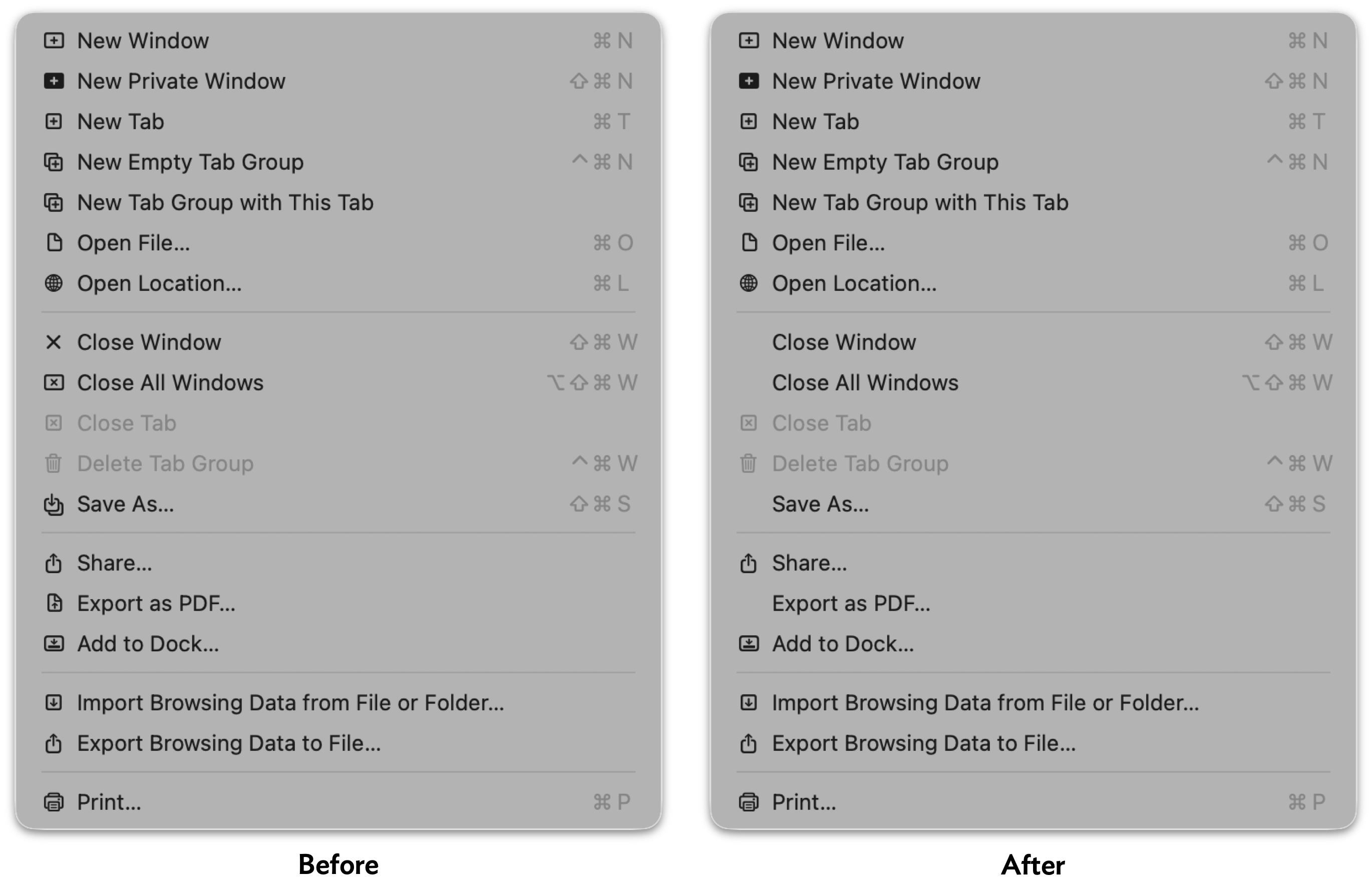
Just this week I wrote about a hidden defaults preference you can set to turn off most of the insipid menu item icons in most of Apple’s first-party apps in MacOS 26 Tahoe. I bemoaned the fact that Safari — generally an exemplar of what makes a great Mac app a great Mac app — generally ignored this setting, leaving most of its menu item icons in place. I am delighted to report that that’s fixed in MacOS 26.4. With the preference set to hide these icons, Safari now only shows a handful.
Here’s a link to the screenshot of the old before/after, taken on MacOS 26.3.2. Boo hiss. Here’s the new before/after, taken on MacOS 26.4:
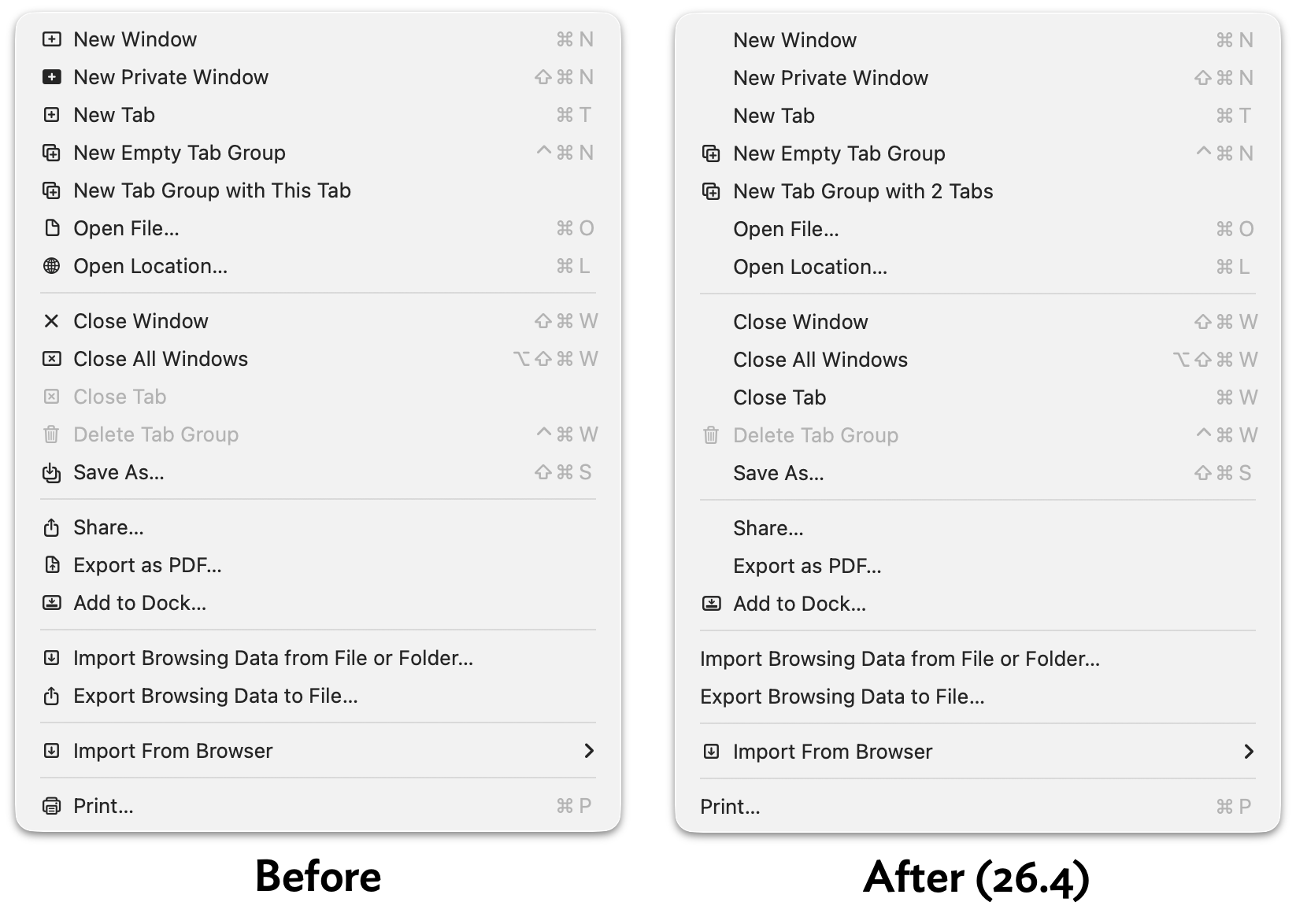
In Tahoe 26.3 (and presumably, earlier versions of Tahoe), 16 of 19 menu items in Safari’s File menu still showed an icon with this setting enabled. In 26.4, only 5 of 19 do.1 The rest of Safari’s other menus have been updated similarly, and look so much better for it.
It’s interesting to me that Safari was updated to support this hidden preference in 26.4. I take it as a sign that there’s a contingent within Apple (or at least within the Safari team) that dislikes these menu item icons enough to notice that Safari wasn’t previously recognizing this preference setting. (And I further take it as a sign that within Apple’s engineering ranks, the existence of this defaults setting is widely known.) Keep hope alive.
Now the Bad News
Another recent Tahoe-related tip I’ve been writing about was using a device management profile to block the prompts in System Settings → General → Software Update to “upgrade” from MacOS 15 Sequoia to 26 Tahoe. I first wrote about it a month ago, linking to a post from Rob Griffiths. I then wrote about it again, just this week, linking to a YouTube video from Mr. Macintosh.
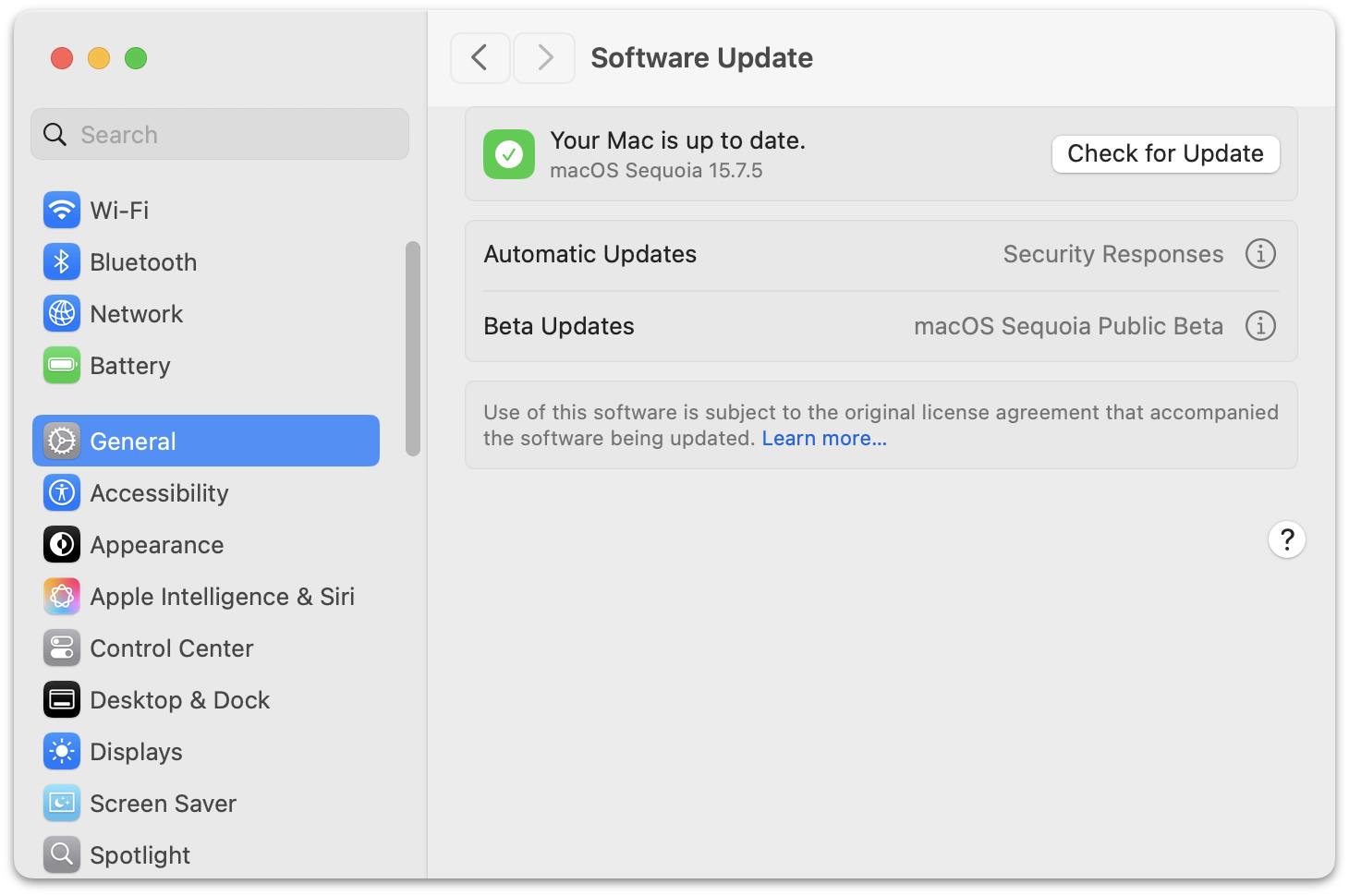
Ever since this technique started making the rounds, there was widespread commentary that it was taking advantage of a bug, not a feature, in MacOS 15 Sequoia. The 90-day “deferral” period to block the Tahoe update prompts was supposed to be from the date of the Tahoe major release (26.0), not from the most recent minor release. Welp, with this week’s release of MacOS 15.7.5, this bug is fixed, and Tahoe shows up in the Software Update panel in System Settings even if you have one of these device management profiles installed. Alas.
All is not lost, however. The same video from Mr. Macintosh shows a second, slightly less elegant way to banish all signs of Tahoe in Software Update (just after the 9:00 mark). The trick is to register your Mac for the MacOS Sequoia Public Beta updates (or the developer betas). This blocks all signs of Tahoe. You don’t actually have to install any future betas of Sequoia (at the moment, there are none available). Just make sure you have Automatic Updates disabled too. I’d rather risk inadvertently installing a public beta of 15.8 Sequoia than inadvertently “upgrading” to Tahoe.
-
In my article earlier this week, my screenshots showed only 18 menu items in Safari’s File menu, not 19. That’s because I took those screenshots on my review unit MacBook Neo, which I’m running in near-default state. Safari’s File → Import From Browser submenu appears in the File menu if and only if you have certain third-party web browsers installed on your system. On my MacBook Neo review unit, I don’t have any third-party browsers installed, so Safari omits this menu item. I snapped today’s screenshots from a different Tahoe machine that has Firefox installed. ↩︎